

Love them or hate them, multi-select picklists are continually utilized in Salesforce and still have a useful reason for existing. And because they exist in Salesforce, admins need to know how to make the best use of them and work with them within the parameters and existing tools of Salesforce itself.
This article covers how to use multi-select picklists with validation rules, reviewing five examples of validation rules that you can use in your org.
What Is a Multi-Select Picklist?
A multi-select picklist is a field type that can be added to Salesforce objects, enabling the user to select more than one option. Its counterpart is a standard picklist, which lets the user select only one option.


Validation Rules: What to Know
Validation Rules stop the user when criteria are met. For example, you might have a validation rule that makes a certain field required for Qualified Leads. When it comes to multi-select picklists, there’s one specific function you need in a validation rule: INCLUDES.

INCLUDES is going to be your go-to function for all validation rules on multi-select picklists. The guide on how to use it is highlighted in yellow in the screenshot above.

It’s a pretty simple function, per se, but multi-select picklists being what they are, the rules about which picklist values can be selected under what conditions can be complicated.
The two main things to remember are that you need to use INCLUDES most of the time, but you can also use a lot of the other standard validation rule functions, like ISBLANK, AND, OR, IF, and NOT(). The following examples should help you learn how to make great validation rules that really work for your users.
1. The User Must Select at Least Two Items From the Picklist
In this example, we assign a numerical value to each picklist selection and then sum them up. If the value is less than or equal to 1, we display an error message.
IF(INCLUDES( Product_of_Interest__c , "Supercool Software License"),1,0) +
IF(INCLUDES( Product_of_Interest__c , "Hardware Widget"),1,0)  +
IF(INCLUDES( Product_of_Interest__c , "Printer"),1,0)  +
IF(INCLUDES( Product_of_Interest__c , "PC"),1,0)  +
IF(INCLUDES( Product_of_Interest__c , "Software Support"),1,0)  +
IF(INCLUDES( Product_of_Interest__c , "Hardware Support"),1,0)

 <= 1

2. The User Must Select Two Particular Items at the Same Time
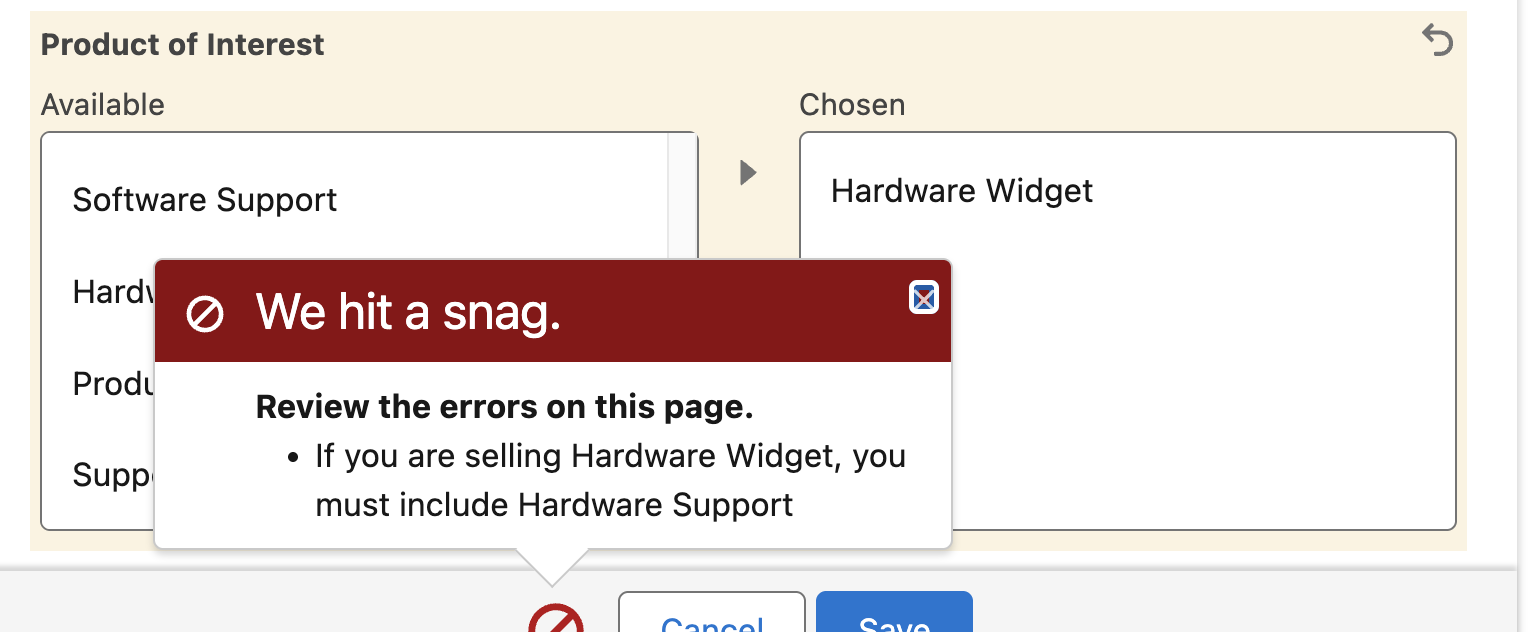
In this scenario, let’s say that our Hardware Widget item must always be sold with the Hardware Support:

The validation rule for this scenario is:
INCLUDES( Product_of_Interest__c , "Hardware Widget")

&&

NOT(INCLUDES(Product_of_Interest__c, "Hardware Support"))
3. The User Cannot Select Certain Items For Certain Countries
For this scenario, let’s say that the Supercool Software License cannot be sold in the US and Canada.
INCLUDES( Product_of_Interest__c , "Supercool Software License")

&&
OR(
 Country = "United States",
 Country = "Canada")
4. The User Must Select an Item if the Probability Is at 50% or Higher.
There is one validation rule function that is still ‘normal’ with multi-select picklists, and that’s the ISBLANK function. This helps determine if the field is entirely blank.

ISBLANK( Product_of_Interest__c ) &&
Probability  >= 0.50
5. The User Must Select at Least One Standard Product and One Support Product
In this example, the multi-select picklist that we’ve been using has two categories: products and services.
When the user selects their option, they must select at least one of each. Experienced admins might say, “This should be split into two separate picklists,” which would be helpful, and you should do it if you’re doing the initial setup.

But for the sake of this example, let’s pretend this is an old existing org and we’re unable to change that.
AND(
NOT(INCLUDES( Product_of_Interest__c , "Supercool Software License")),
NOT(INCLUDES( Product_of_Interest__c , "Hardware Widget")),
NOT(INCLUDES( Product_of_Interest__c , "Printer")),
NOT(INCLUDES( Product_of_Interest__c , "PC")))
||
AND(
NOT(INCLUDES( Product_of_Interest__c , "Software Support")),
NOT(INCLUDES( Product_of_Interest__c , "Hardware Support")))
Scenarios Tested
Nothing selected = error message
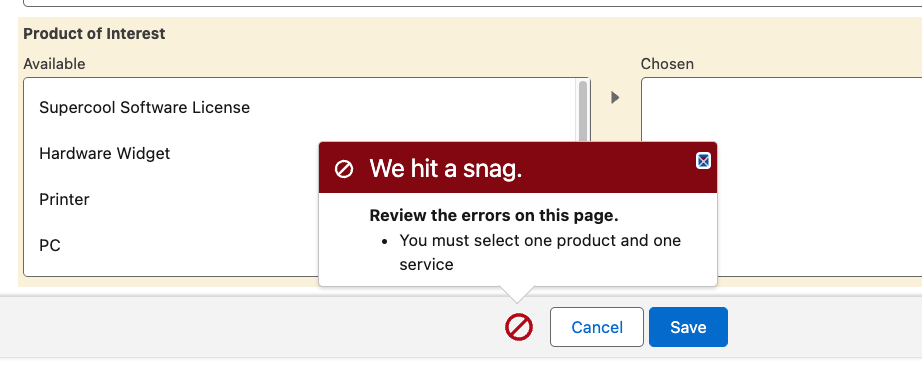
Only a product = error message
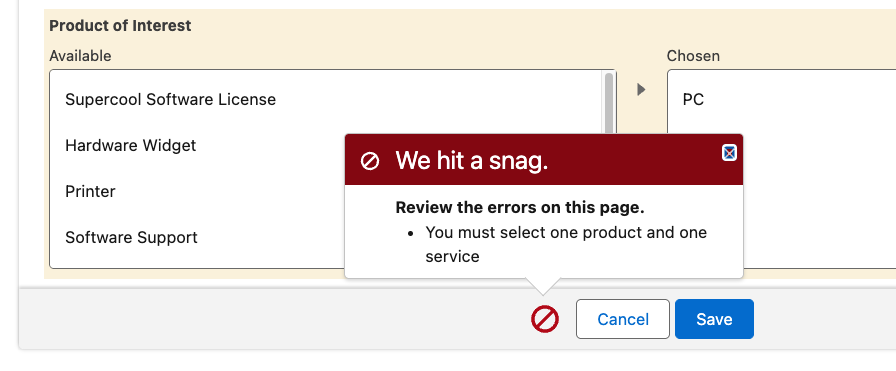
Only a service = error message

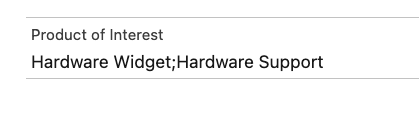
One product and one service = successful save
Final Thoughts
Of course, these validation rules are not the only ones you can build with multi-select picklists. I highly encourage you to use a Sandbox, or even a Trailhead learning org, to practice your validation rule skills on multi-select picklists.
Even if you vow never to create one of these fields, it’s likely that you will come across one at some point in your career, so it is beneficial to learn how to manage them effectively.
If you have any other tips on how to use validation rules and multi-select picklists, let us know in the comments below!