

Salesforce is introducing enhanced security measures for system-generated emails. Going forward, emails will only be delivered if they originate from a trusted domain or if the “Send Email from Unverified Domains” setting is enabled.
This guide focuses on overrides you can implement to reduce the number of emails sent from user addresses. By shifting to Org-Wide Email Addresses, you can help ensure your organisation remains compliant with these changes while improving email deliverability and consistency.
Organization-Wide Addresses
Within Salesforce, you can set up an Organization-Wide Email Address to use across Email Alerts, the Send Email action in Flow, and user-initiated emails from the Email Composer. This ensures emails are sent from a consistent system address rather than individual user addresses.
You can also define a Default No Reply Address. This is used in Service Cloud alongside the Send Case Notifications from System Address setting. It handles notifications throughout a case’s lifecycle, for example, when a comment is added, ownership changes, a case is escalated, or a new email is received.
Before an Organization-Wide Email Address can be used, it must be verified to confirm the address is valid. Salesforce sends a verification email containing a link, which must be clicked to complete the process.
Access to Organization-Wide Email Addresses can also be controlled, allowing you to restrict usage to specific Profiles or Permission Sets.
Organization-Wide Email Addresses are not deployable between environments. However, when creating or refreshing a sandbox, any addresses from the source environment are automatically copied into the new sandbox.
Switch to Organization-Wide Address from User-Email Address
To better align with the upcoming Email Security Requirements, you can follow the steps below to identify Email Alerts and Send Email actions in Flows that send emails as either the Default Workflow User or the Current User.
These steps assume standard usage of these features and do not account for any custom configurations. Please note that the queries will not capture Custom Actions or Apex code that may also be used to send emails.
Email Alerts
| No Code | Pro Code |
|---|---|
| Navigate to Setup → Email Alerts and create a List View that includes From Email Address Filter by Display Name = “” to only include Email Alerts sending as the Current User or Default Workflow User | Run the SOQL Query with the Tooling API to discover Email Alerts that are setup and don’t use a OrgWideEmailAddress select id, DeveloperName, Description, SenderType, EntityDefinition.DeveloperName from WorkflowAlert where SenderType != ‘OrgWideEmailAddress’ |
Send Email Action in Flow
| No Code | Pro Code |
|---|---|
| Navigate to [MYDOMAIN]/lightning/n/standard-ActionHub?lightning__Id=emailSimple-emailSimple eg. resourceful-otter-64nvnn-dev-ed.trailblaze.my.salesforce.com/lightning/n/standard-ActionHub?lightning__Id=emailSimple-emailSimple | Scan Flow Metadata for |
| Note: Both methods will return multiple rows if a Flow has multiple Send Email Actions | |
As a best practice, make changes to your sandbox environments and complete regression testing of these alerts first before deploying changes to Production.
Report and Dashboard Subscriptions
By default, Report and Dashboard Subscriptions in Salesforce are sent from the user who created the subscription. If you have configured an Organization-Wide Address, you can override this in Report and Dashboard Settings so that emails are sent from that address instead of an individual user.

As with any Salesforce change, ensure you implement and test this in a Sandbox first. Confirm that subscription emails are still being delivered successfully before promoting the changes to Production.
Process Automation Emails
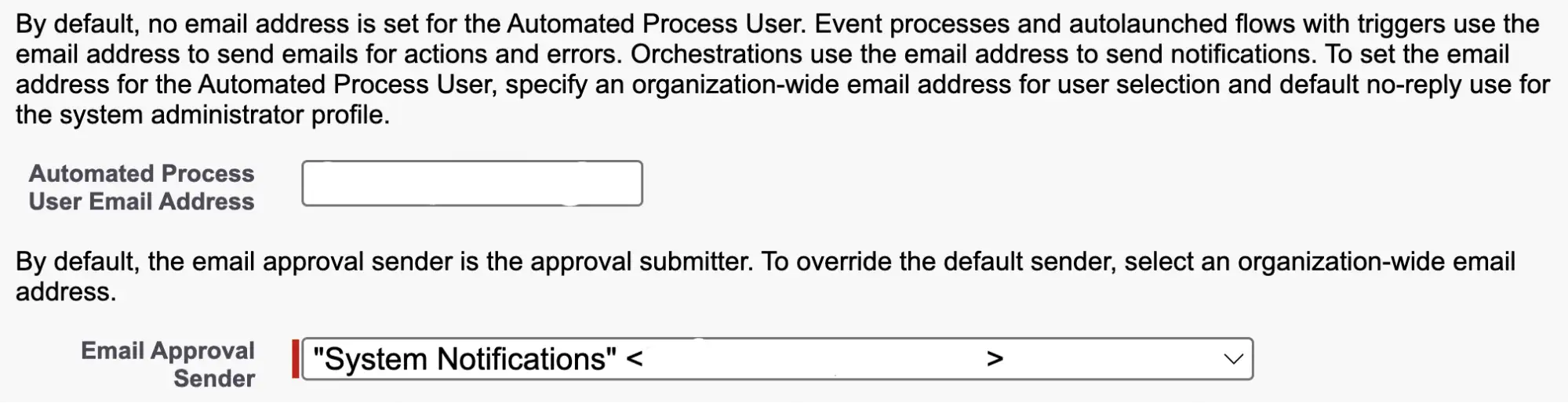
Within Process Automation Settings, there are two key overrides for system-generated emails.
The Automated Process User Email Address is used for emails related to actions, errors, and orchestrations.
By default, approval emails are sent from the submitter. However, you can adjust the Approval Request Sender setting to customise the sender. This setting only applies to Classic Approval Processes and not Flow Approval Processes.
Both options support the use of an Organization-Wide Email Address, giving you full control over who these notifications appear to come from.
As with any change, be sure to implement this in a Sandbox first and test thoroughly. Once validated, replicate the changes in Production and re-test to confirm everything is working as expected.
Experience Cloud Emails
Experience Cloud is used to grant external users the ability to create and access records. It is commonly implemented as a Customer Service Portal, allowing customers or partners to raise cases and report issues.
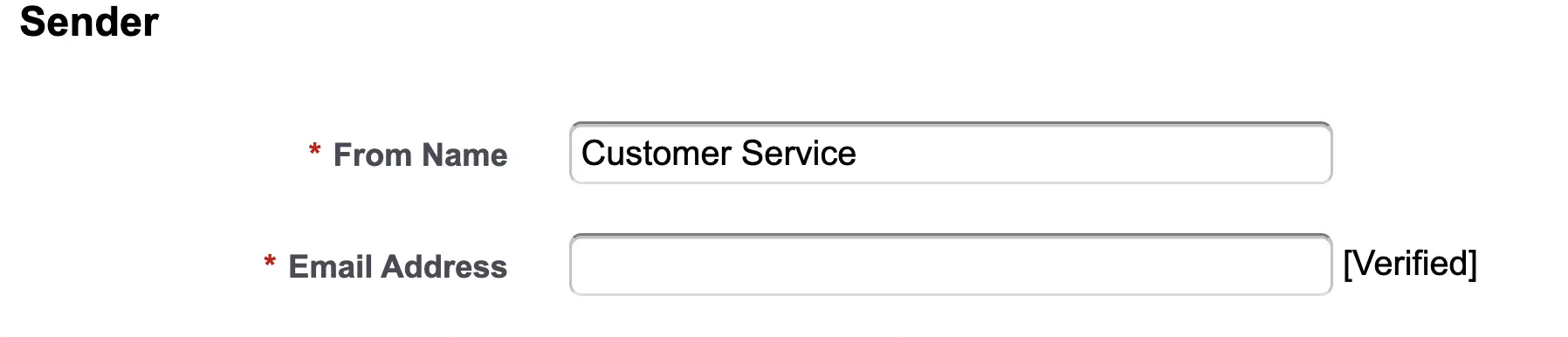
Within each Experience Cloud site, there are two areas where you can override the sender address.
In Workspaces → Administration → Emails, you can customize the email used by the site for sending welcome emails, password reset, and other emails. This email address must be verified before it can be used.
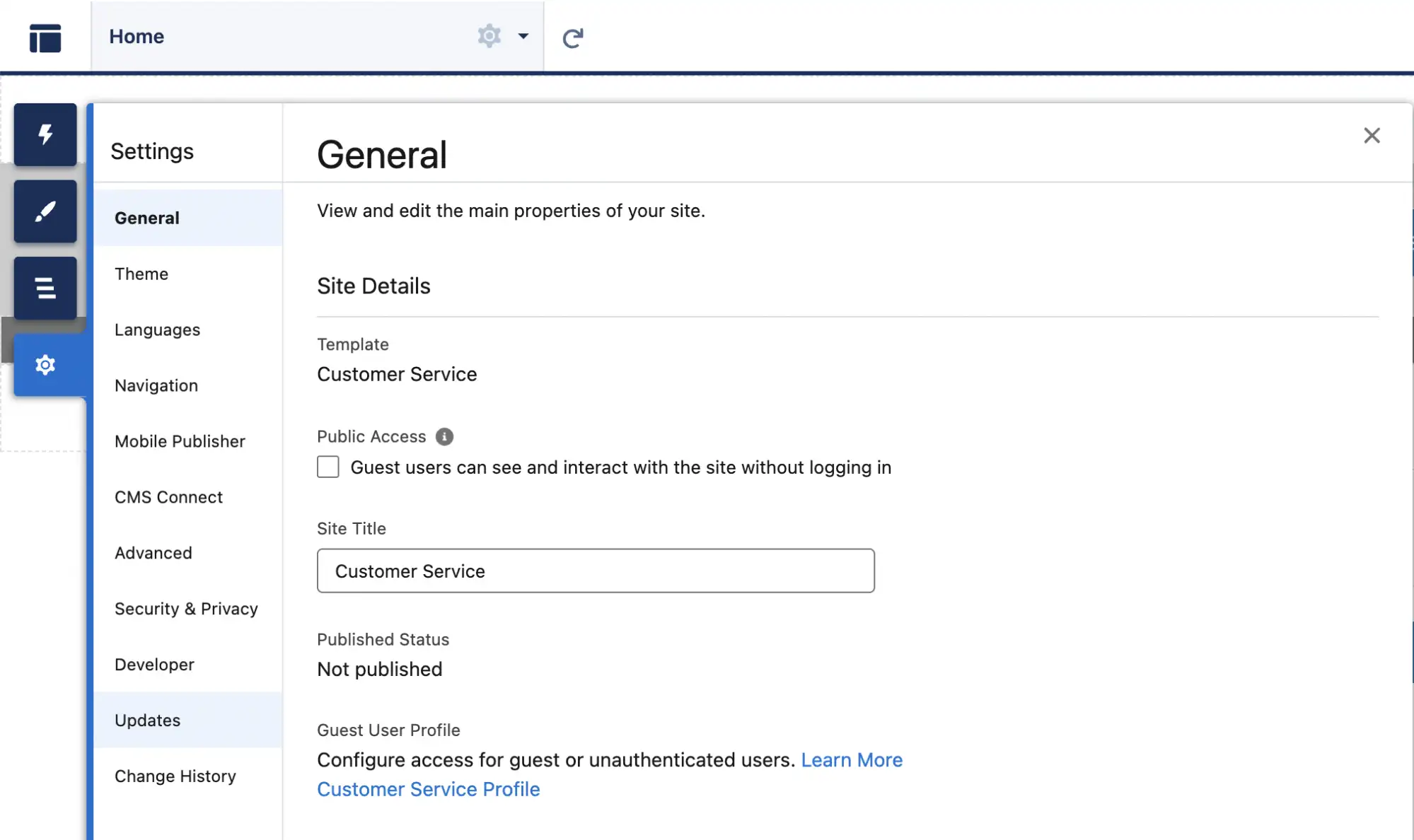
Each site will have a corresponding Guest User. If this user triggers an email, they have to have a verified email address, otherwise the email will not be sent. Salesforce hides these users. To navigate to the Guest User within the Experience Builder, press the Settings cog button. From this screen, press on the Guest User Profile Hyperlink.
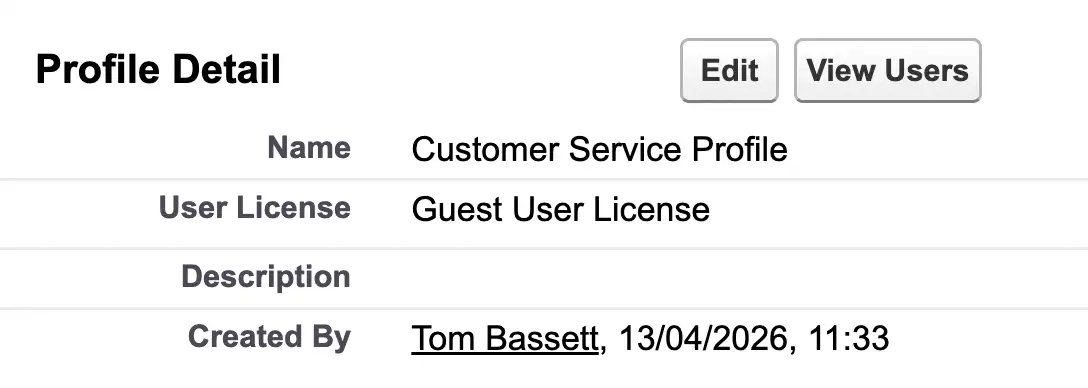
From the Guest User Profile, press on the View Users button.
From the Guest User Record, adjust the Email Address so that it matches an Organization-Wide Address if it doesn’t already.
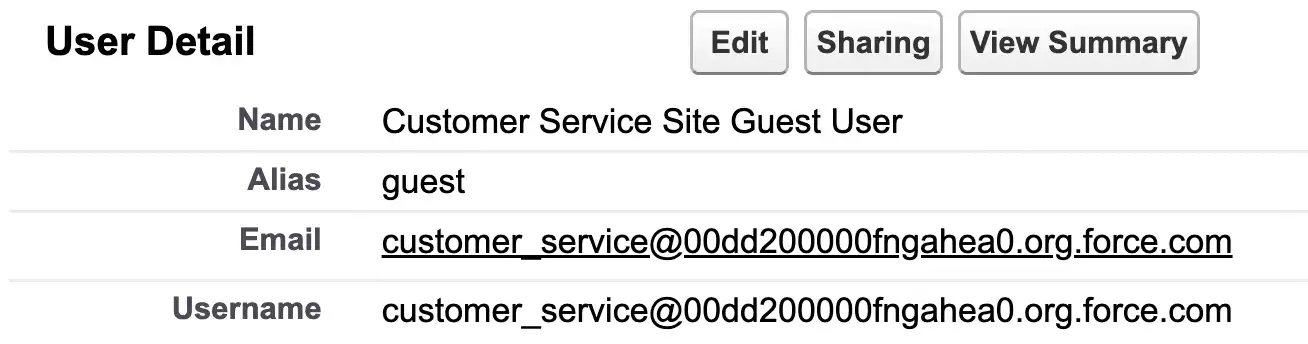
These steps are applicable to each and every site you may have set up. Make sure you make and test these changes in a Sandbox prior to making any changes in Production.
Chatter Emails
Chatter is often used as an Internal Collaboration tool where users can add posts, comments, and @ mentions to collaborate on records or groups.
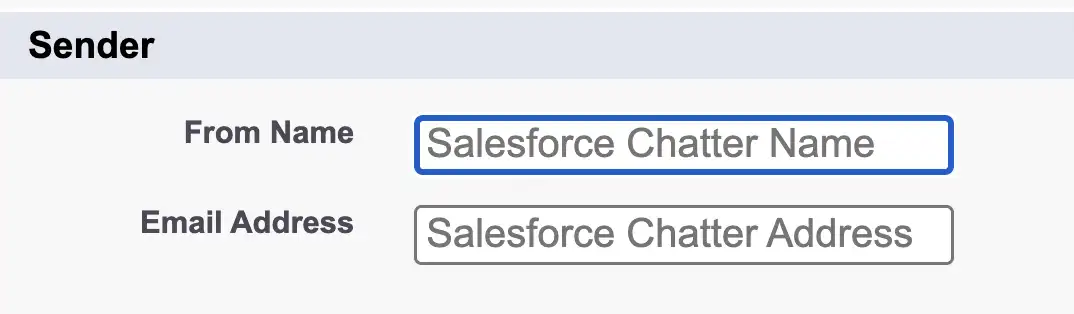
In Setup, under Chatter Settings, there is a dedicated Email Settings section. From here, you can define an Email Sender Name and Email Sender Address to customise how Chatter emails are sent.
If these fields are currently blank, then no customization has been applied. As a result, Chatter emails are likely not being sent from the org, as Salesforce has required these settings to be configured for some time in order for Chatter email notifications to be delivered.
Once you add in these settings, you will need to verify the email address before these settings are applied.
Email Composer User-Initiated Emails
Users can send emails from records via the Activity Timeline if this is set up for a specific object. By default, these emails come from the user’s email address.
You may want to consider instructing users to adjust this to an Organization-Wide Address or setting this as the default in a Custom Send Email Action per object.

Summary
It is fast becoming best practice to configure emails to be sent from a system address rather than a user address, in response to the latest email security updates introduced by Salesforce.
To ensure readiness, please complete the steps outlined in this article by May 4, 2026, when Salesforce is due to enforce these email security changes in Production orgs.
Other Resources
- Set Up a Default No-Reply Email Address (Salesforce Help)
- Set Up Organization-Wide Email Addresses (Salesforce Help)
- Designate One Email Address to Send Report Subscription Notifications (Generally Available) (Salesforce Help)
- Designate One Email Address to Send Dashboard Subscription Notifications (Salesforce Help)
- Process Automation Settings (Salesforce Help)
- Customize Email Sent from Experience Cloud Sites for Email Verification (Salesforce Help)
- Restrict Emails Sent from Unverified Email Addresses by the Guest User (Release Update) (Salesforce Help)
- Require an Email Address to Send Chatter Email Notifications (Release Update) (Salesforce Help)