

If you need to automate anything in Salesforce, Flow Builder is one of the most powerful tools at your disposal. There’s little you can’t do with Flow, and the best part is, it requires no coding skills. That said, I wouldn’t go so far as to call it “easy”, especially if you’re just starting out. But while you’re tackling the ropes, one of the most common and useful things you’ll probably want to do is send an email automatically.
So whether you’re emailing to confirm a case submission, alert a team member, or welcome a new customer, read on to be guided on different ways you can send emails from Flows.
Why Send Emails from a Flow?
First question: Why should you send emails automatically at all? It’s kind of like asking why you’d use a dishwasher instead of hand-washing everything. Sure, you could do it manually (and do it right!) every time, but why not save yourself the repetitive effort and save time doing other important tasks?
Depending on your business needs, there are obviously several ways to send emails in Salesforce. Out-of-the-box features and tools like Email Alerts, Auto-Response Rules, or even the Send Email button on records can all do the job in specific scenarios. But the focus for today is on Flows, which gives you far more control over when emails are sent, to whom, and under what conditions.
Logic can be tailored as precisely as needed and even pulls in data from related records. This ensures timely communication with enhanced personalization thanks to the improved Send Email action, which now supports rich formatting and eliminates many of the limitations of older methods.
What You Need Before Sending Emails
Before you start building your Flow, there are some things to double-check.
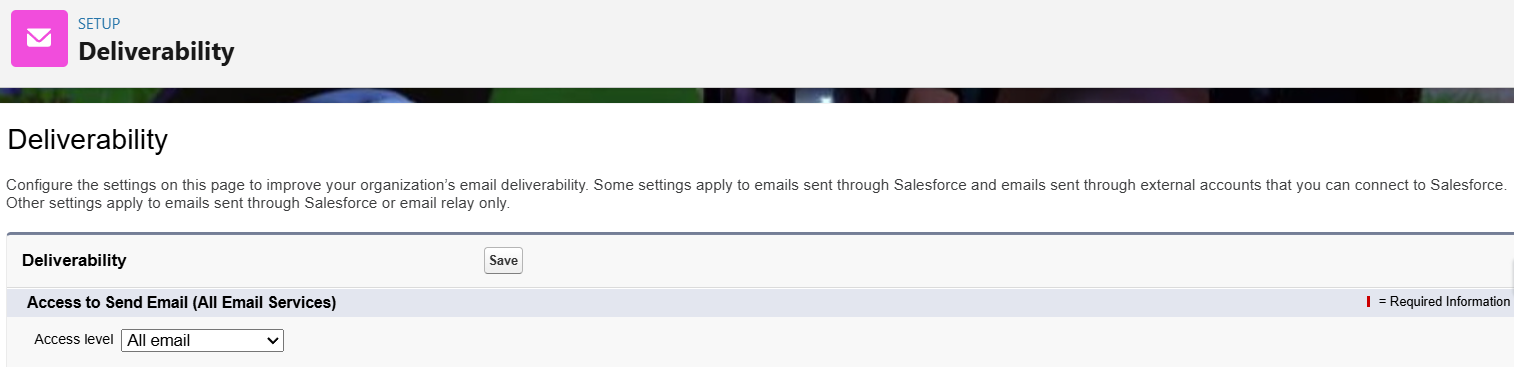
Ensure your org’s Email Deliverability setting is configured to “All Email”. This means that your organization is configured to send all types of emails, including those triggered by automation or user actions, without restrictions. This can be done from Setup → Email → Deliverability.
If you’re planning to use a consistent sender address, set up and verify an Org-Wide Email Address.
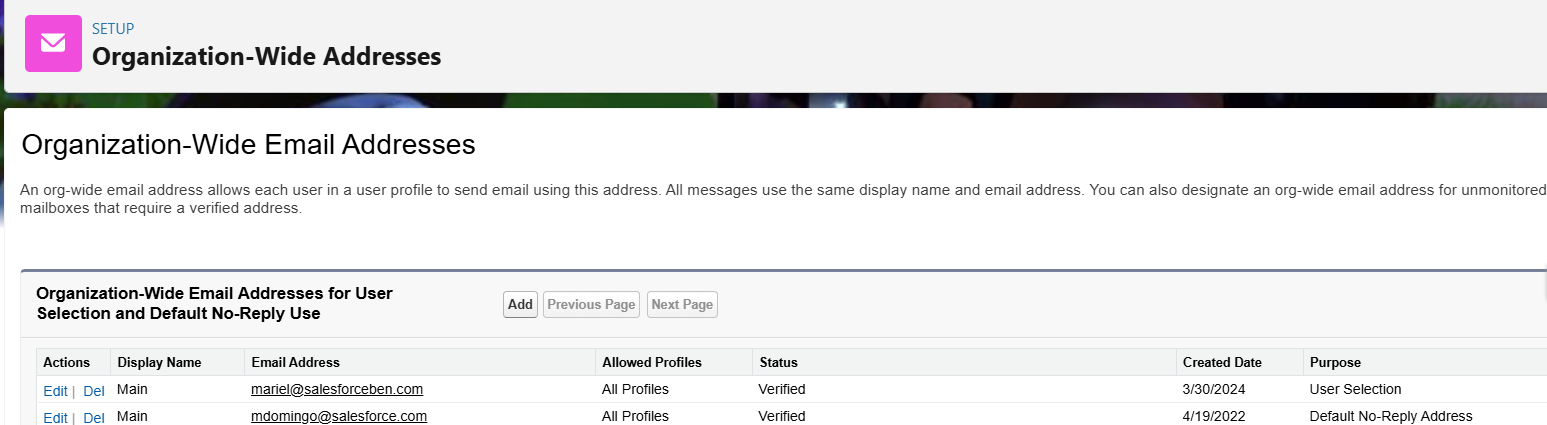
When sending emails from Salesforce, you can set up users with the appropriate Profiles to choose between their own email address or an organization-wide email address to appear in the “From” field. Here’s where you can also configure a special-purpose organization-wide email address to be used when no reply is expected. This can be done from Setup → Email → Organization-Wide Addresses.
You should also confirm that you have the necessary Manage Flows permission so that you’re able to build the required Flows. This permission will not be required for users who will be using the Flows, although depending on which type of Flow you’re configuring, you may need to give them explicit access to those Flows.
Call Out an Email Alert in Flow
This method requires you to create an email template and email alert first, and then call them out with a Send Email Alert element in Flow Builder.
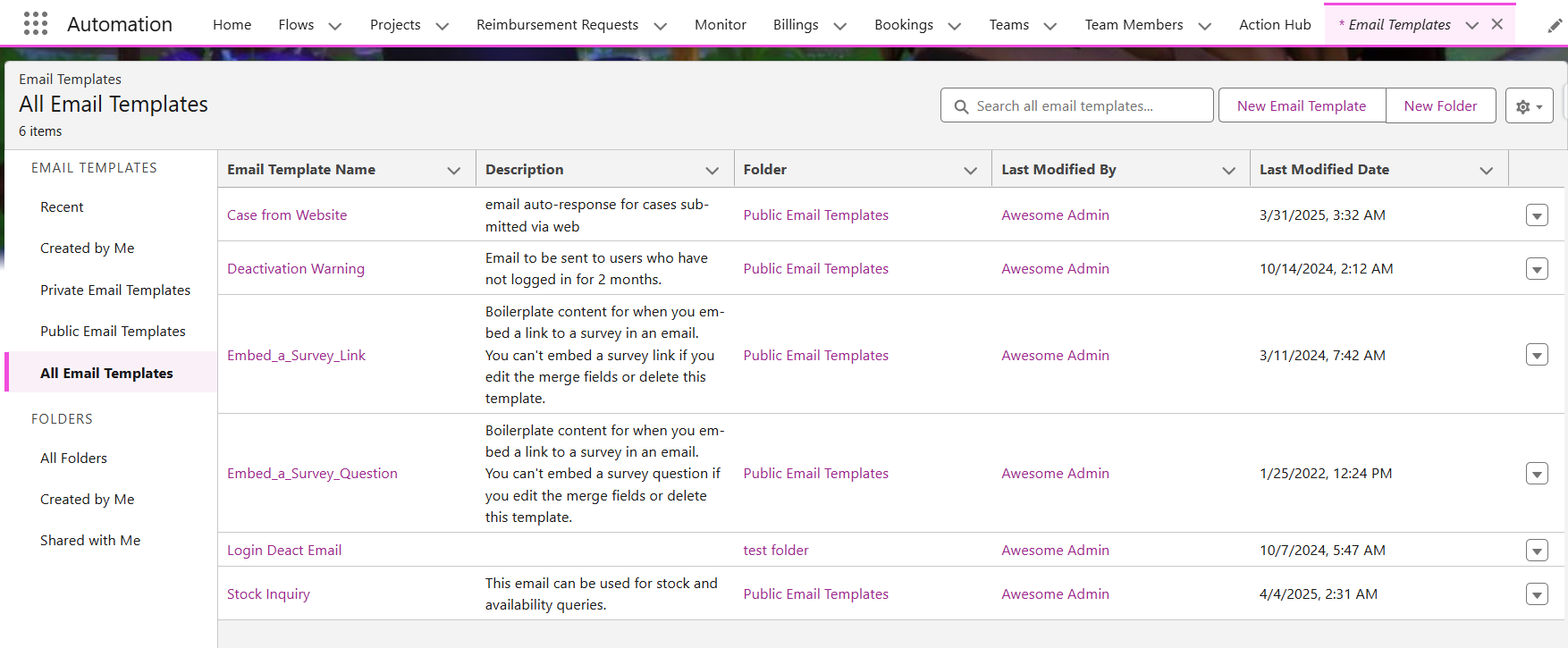
From the App Launcher, select Email Templates. Verify if you already have an email template you’d like to use, or click New Email Template on the upper right to create a new one. Email template folders are on the left side of the screen.
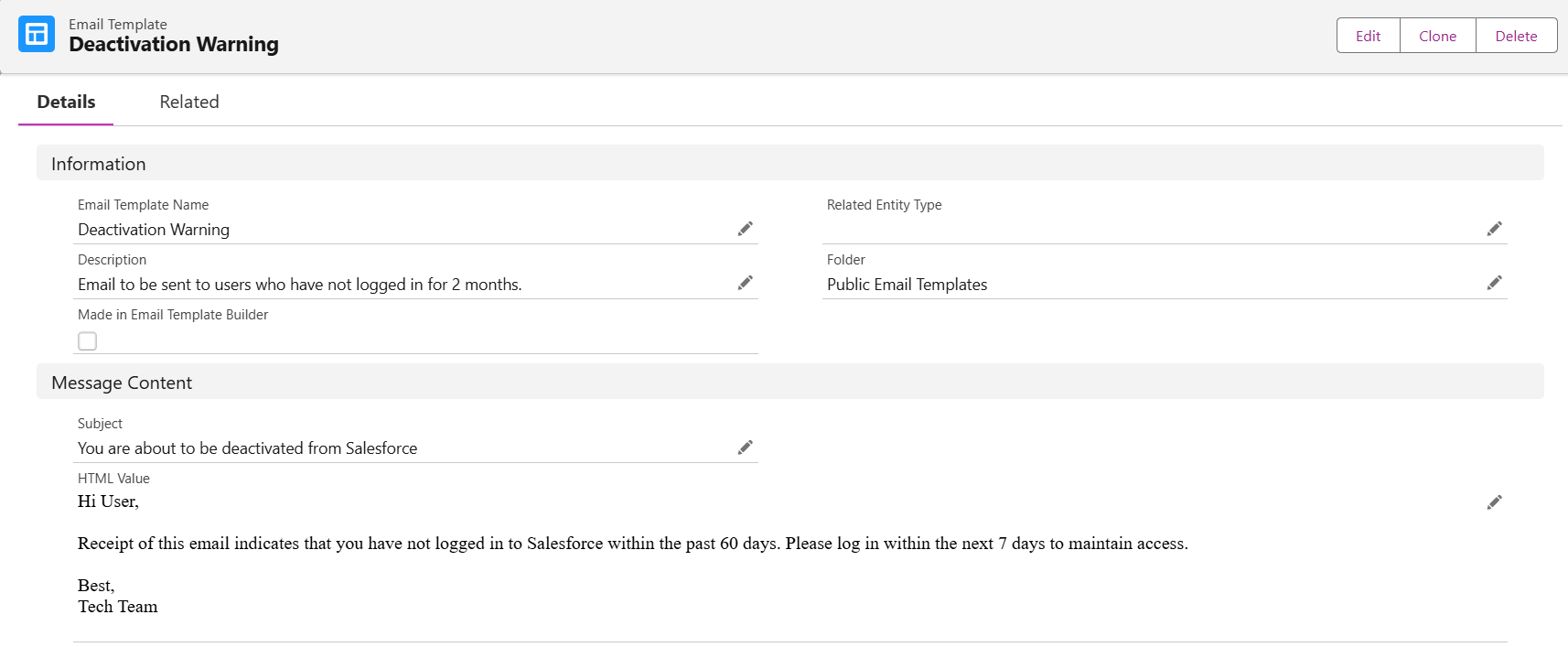
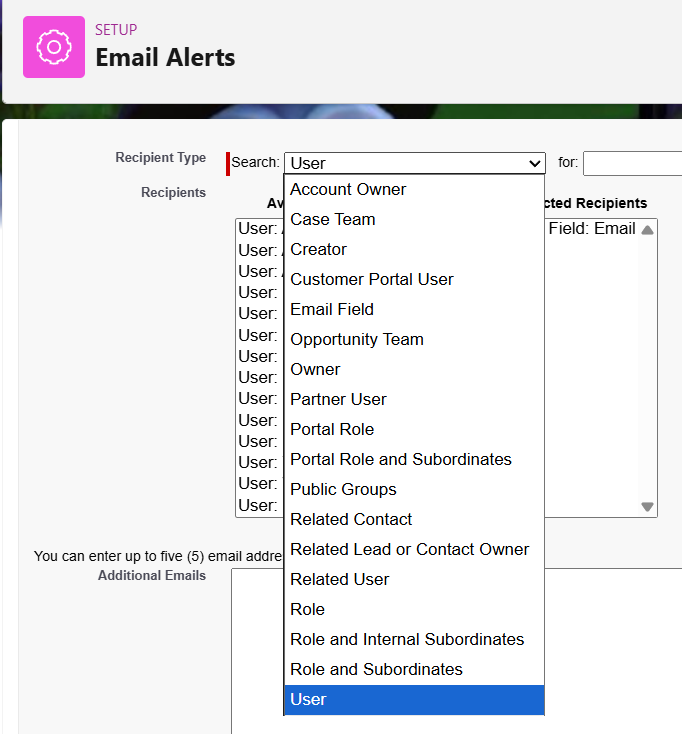
From Setup → Email Alerts, click New and create an Email Alert that identifies the email template to use as well as the recipients. You can pick from a variety of recipient types as well, not just user!
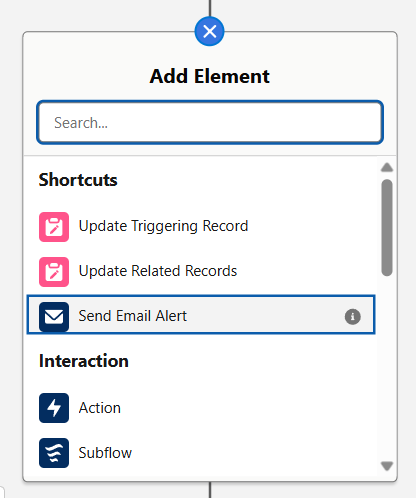
Once that’s done, jump into Flow Builder and start creating your Flow. To add an email alert, click the plus sign and look for the Send Email Alert action.
From here, it’s as easy as selecting the email alert you created earlier and giving the element a label and description. For the Record ID, identify which record you want to reference in the email and use that record’s ID. For example, if you’re sending the email to the Contact that triggered the flow, use the ID of the triggering contact.
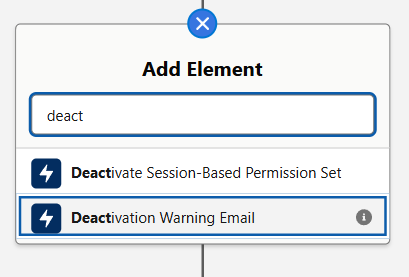
You can also directly search for the name of your Email Alert and add it to your flow as a new action.
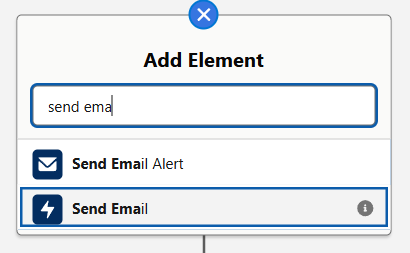
Send Email Action and Email Template
For this method, click the plus sign and search for Send Email.
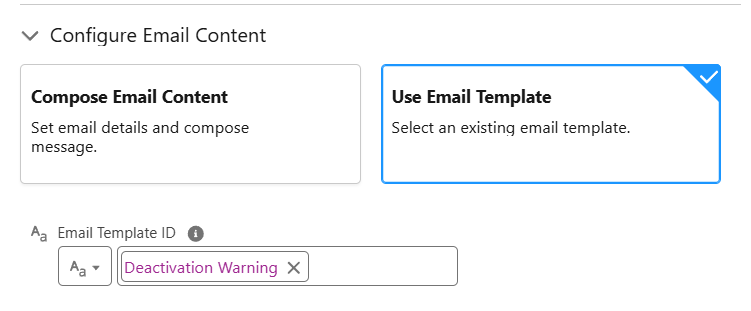
Give it a label and description, then scroll down to Configure Email Content. Select Use Email Template, and add your email template under Email Template ID.
Use a Text Template for the Email Body
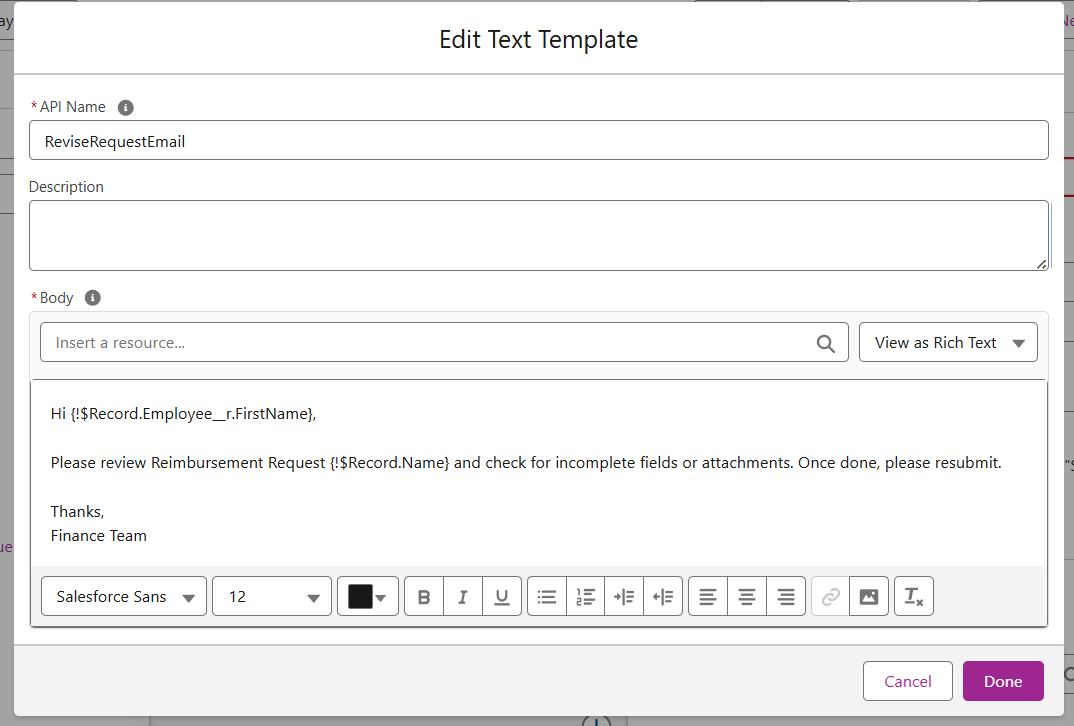
If you already have an existing Text Template resource in your Flow, you can call that out from the Send Email action as well. Here’s my existing Text Template:
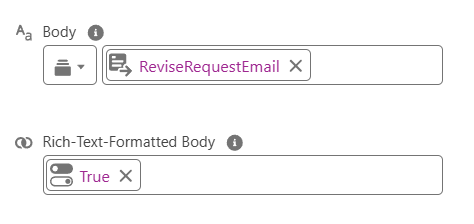
Under Configure Email Content, make sure Compose Email Content is selected and click the dropdown under Body.
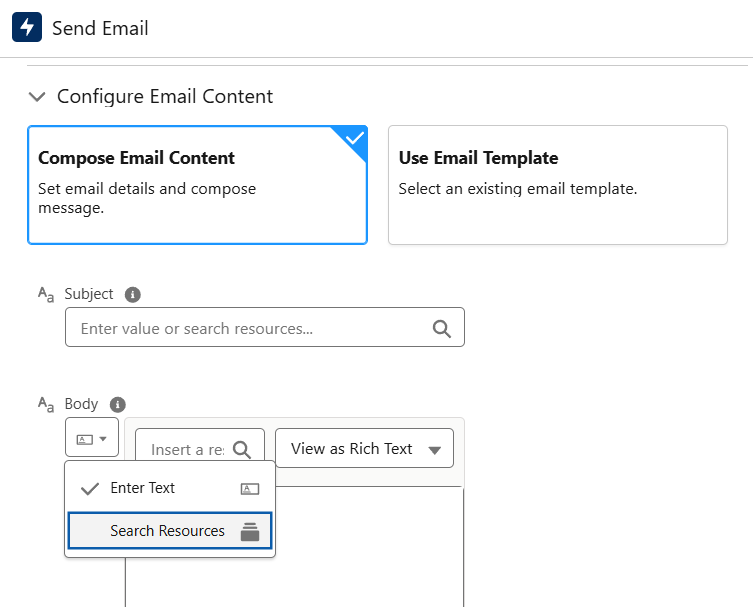
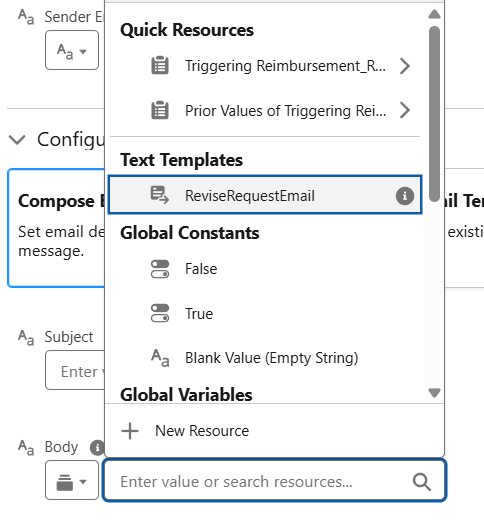
Click Search Resources and select your Text Template.
Below this is the rich-text-formatted Body parameter. Depending on whether your text template contains rich text or plain text, you can set this to either true or false, respectively.
Compose Body from the Send Email Action
This one’s my favorite, and also the most efficient one. Unlike the previous methods, you won’t need to prepare an email template, email alert, or text template beforehand.
Add the Send Email action and give it a label + description. Under Configure Email Content, make sure Enter Text is selected. This gives us a rich-text-enabled email composer, straight from the element configuration!
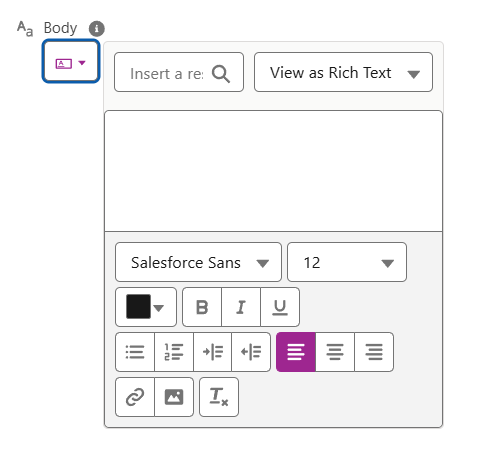
The WYSIWYG composer has a variety of basic formatting options as well, such as font color, text alignment, bullets, numbering, hyperlinks, and more.
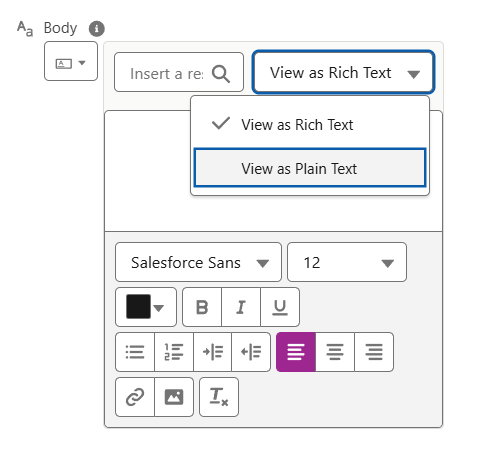
But if you’d like to compose in plain text, you can do that, too. Just remember to set rich-text-formatted body to true or false.
Formatting Your Emails
Salesforce allows you to use plain text or rich text when constructing emails in Flow. Rich text provides more flexibility with styling and branding, but be sure to test the rendering across different email clients.
Merge fields also add a dynamic touch, and give you the capability to personalize the email while pulling in relevant data like names, record numbers, or custom field values. If your email needs to reflect consistent formatting or corporate branding, consider building it as a reusable Email Template.
When to Use Which Method
With multiple ways to send emails from a Flow, the best approach depends on how much flexibility you need, who will maintain the automation, and how standardized the messaging should be. Here’s a quick guide sheet to help you choose:
Email Alert
- You’re working with existing, legacy Email Alerts that were originally created for Workflow Rules or Process Builder.
- The alert is already used in other automations, and you want to avoid recreating it in Flow.
- Your use case fits the Email Alert model, which is typically tied to a single object.
- Admins or teams outside of Flow management may need to update the alert without touching the Flow itself.
Send Email Action and Email Template
- You want a more modern and flexible alternative to Email Alerts.
- You still want the convenience and consistency of a template, but prefer triggering it directly from Flow.
- You want more control over the template selection or logic behind when different templates should be used.
- Admins or teams outside of Flow management may need to update the template without touching the Flow itself.
Text Template as the Email Body
- You need dynamic content that’s easier to build or manage within Flow.
- The structure is simple, but the merge fields or logic vary depending on conditions.
- You’re comfortable maintaining the messaging inside the Flow rather than Setup.
Compose from the Send Email Action
- You want the fastest, most flexible, and most modern way to compose emails in Flow.
- You don’t need to maintain separate email templates outside Flow or text resources inside Flow Builder.
- You prefer to configure formatting, personalization, and merge fields while you’re building your Flow.
- You’re building messaging specific to your Flow, and it won’t be reused elsewhere.
Final Thoughts
Sending emails from Flows is now more powerful and flexible than ever, thanks to the latest enhancements to the Send Email action.
Admins can use these improvements to automate communications with confidence. With several options available for sending emails through Flow, the best choice ultimately depends on your preferences and business needs.
Whether you stick with traditional Email Alerts or build your email directly in Flow Builder, the right setup leads to smoother processes and a better experience for your users and customers.