








One of the greatest things about Dreamforce’s coverage on Salesforce+ was the ability to get hands-on with some of the new features from almost anywhere in the world. It was here that I was able to get hands-on with features like Agentforce Coworker and Slackforce. Something that I noticed during the setup of these features during the hands-on sessions was Salesforce’s push to use Salesforce Go as the primary method of enablement.
In this article, you’ll learn exactly what Salesforce Go is, how it differs from the regular Salesforce setup experience, and the benefits it brings to Salesforce professionals everywhere.
Tailored Setup Experience
If you’ve been around the Salesforce space for any period of time, you’d be aware that a lot is going on under the hood. Salesforce has expanded far beyond its core CRM offering, and there are many new features dropping with each and every release too. As an admin, it can become overwhelmingly difficult to keep track of all these features, and even more difficult to know exactly how to set them up.
This is why Salesforce created Salesforce Go.
Originally, Salesforce Go was known as Sales Cloud Go and was designed to help Sales Cloud admins set up new features in their Salesforce orgs. Since then, the scope of the enhanced setup experience has expanded to cover all sorts of Salesforce feature setups.
Salesforce makes it super easy to find the new setup experience, too. You can find it in the Setup menu at the very top of the side panel, or some orgs even have it accessible from the cog at the top of the page.
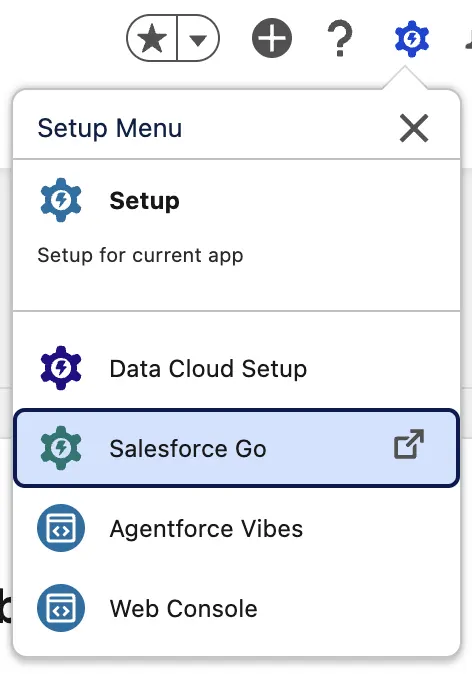
Salesforce Go is available to all users with the “View Setup and Configuration” permission, and can be accessed in Pro Suite, Professional, Enterprise, Unlimited, and Developer editions with Service Cloud. Notably, additional permissions may be required to enable different features of Salesforce – this depends on what you’re trying to enable.
All You Need in One Place
When you open Salesforce Go for the first time, you’ll be greeted with a welcome video that explains how it works. However, once that’s dismissed, you’ll see the Salesforce Go dashboard. It groups features into different categories and has a search bar at the top for convenience.
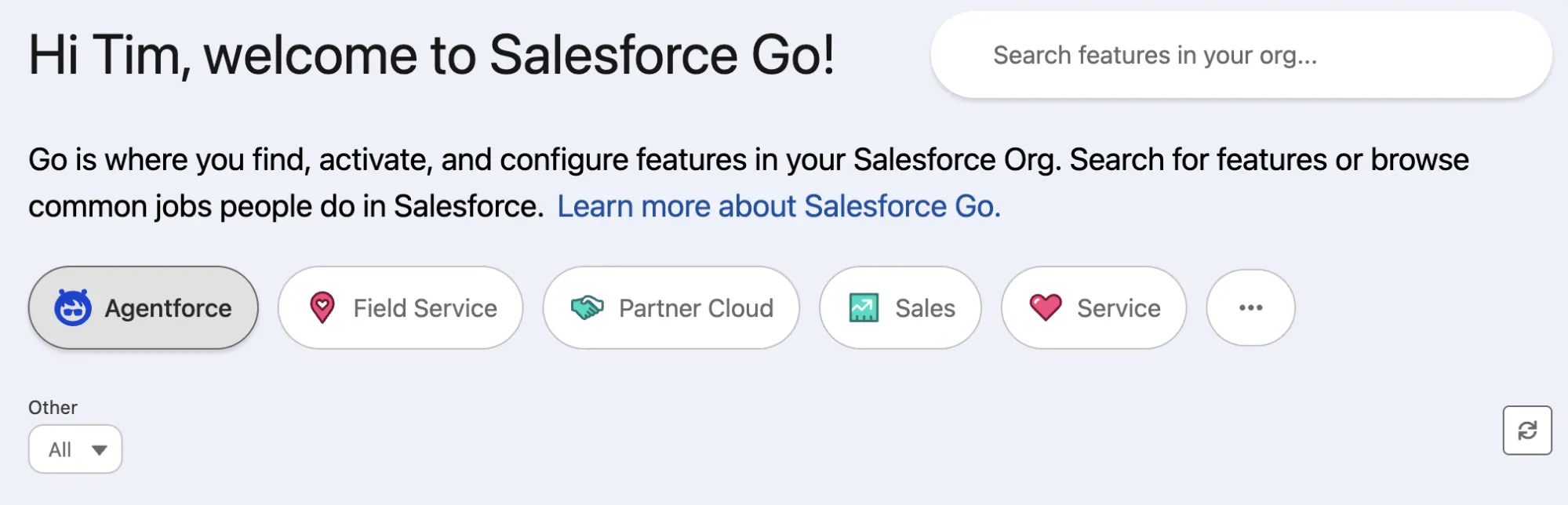
While you absolutely can still use various other areas of the Setup menu, Salesforce Go has been built as a one-stop shop for all things Salesforce setup. Instead of needing to navigate across multiple areas of the Setup menu, you can now find everything you need to activate a product in a single place. This is particularly useful for those more complex feature setups that require steps across many different areas of Setup,
Explore Agents, Features, and Feature Sets
Depending on the section that you’re looking at, you’ll see that there are three main groupings of cards: Agents, Features, and Feature Sets. Under the Agentforce category, you’ll see the Agents available, whereas the other categories show the Features and Feature Sets.
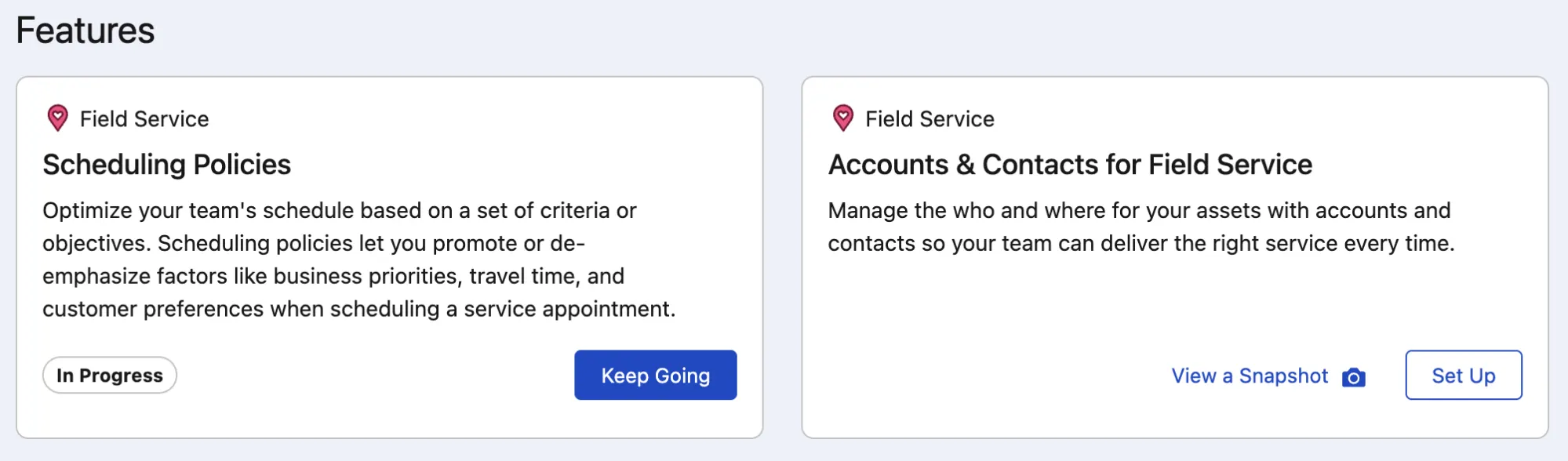
While the Features are straightforward individual features, clicking into each Feature Set will surface a list of products depending on what’s available in your own org – some Feature Sets may already be in progress depending on what you have enabled in the org prior to Salesforce Go going live (in this case, you’ll see a “Keep Going” button as opposed to a “Set Up” button). This way, no matter where you are in your journey, you can still check out what other features may complement your implementation.
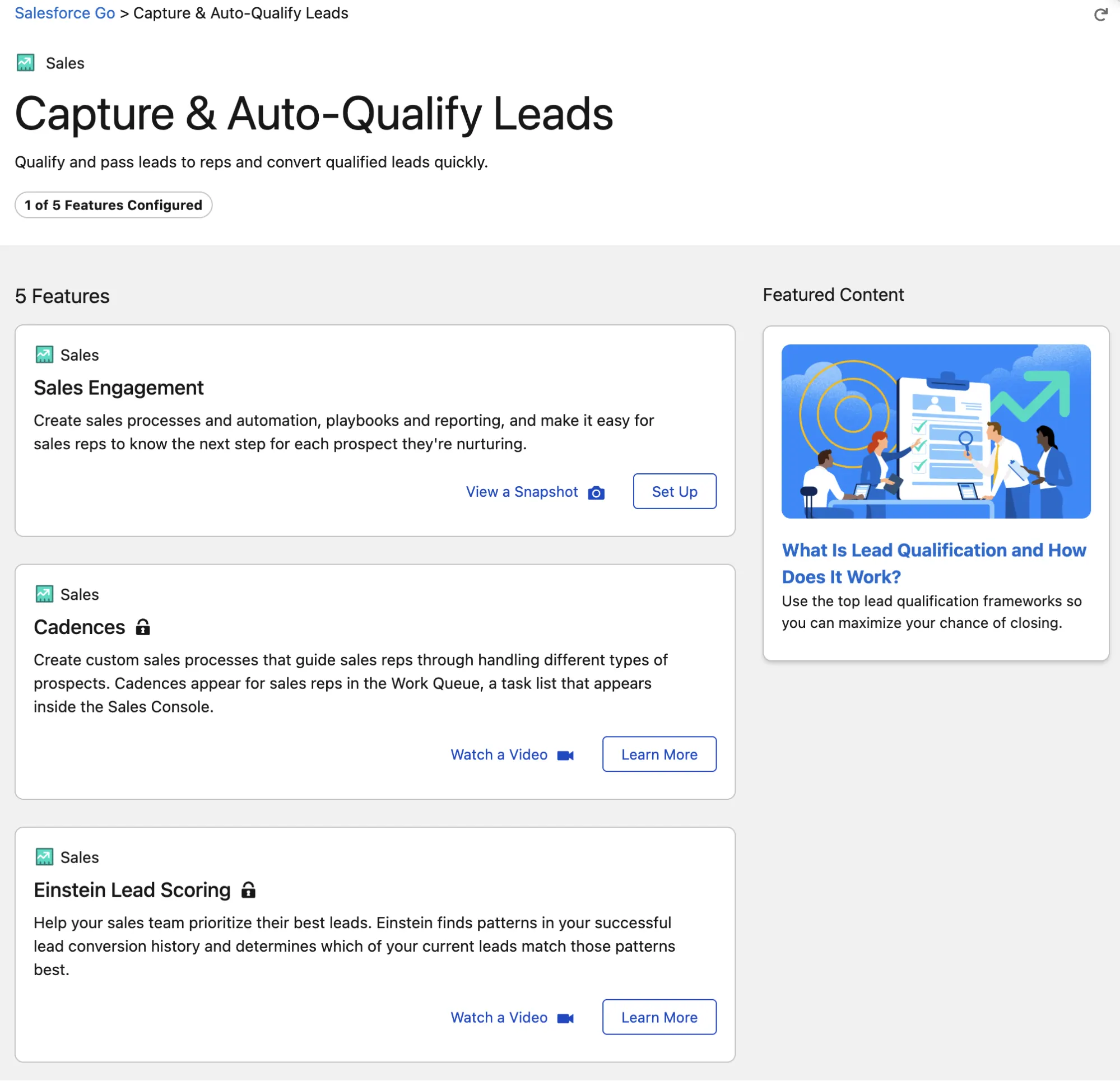
Each Feature Set is made up of a series of Features that work together to achieve a specific outcome or goal. For example, if you’re looking to speed up the capturing and qualification of your leads, you can work through the Sales category’s Capture & Auto-Qualify Leads Feature Set. Within this Feature Set, you’ll find all the recommended features as well as some content to help you understand the importance of capturing and qualifying leads.
Resources at Your Fingertips
Locating the right documentation and information can sometimes turn into a bit of a journey, so having all resources surfaced directly in Salesforce Go is certainly a time-saving addition.
Embedded in each feature, you will find relevant links to Salesforce Help, which – depending on the feature – cover the functionality and prerequisites, as well as any considerations you may need to take into account.
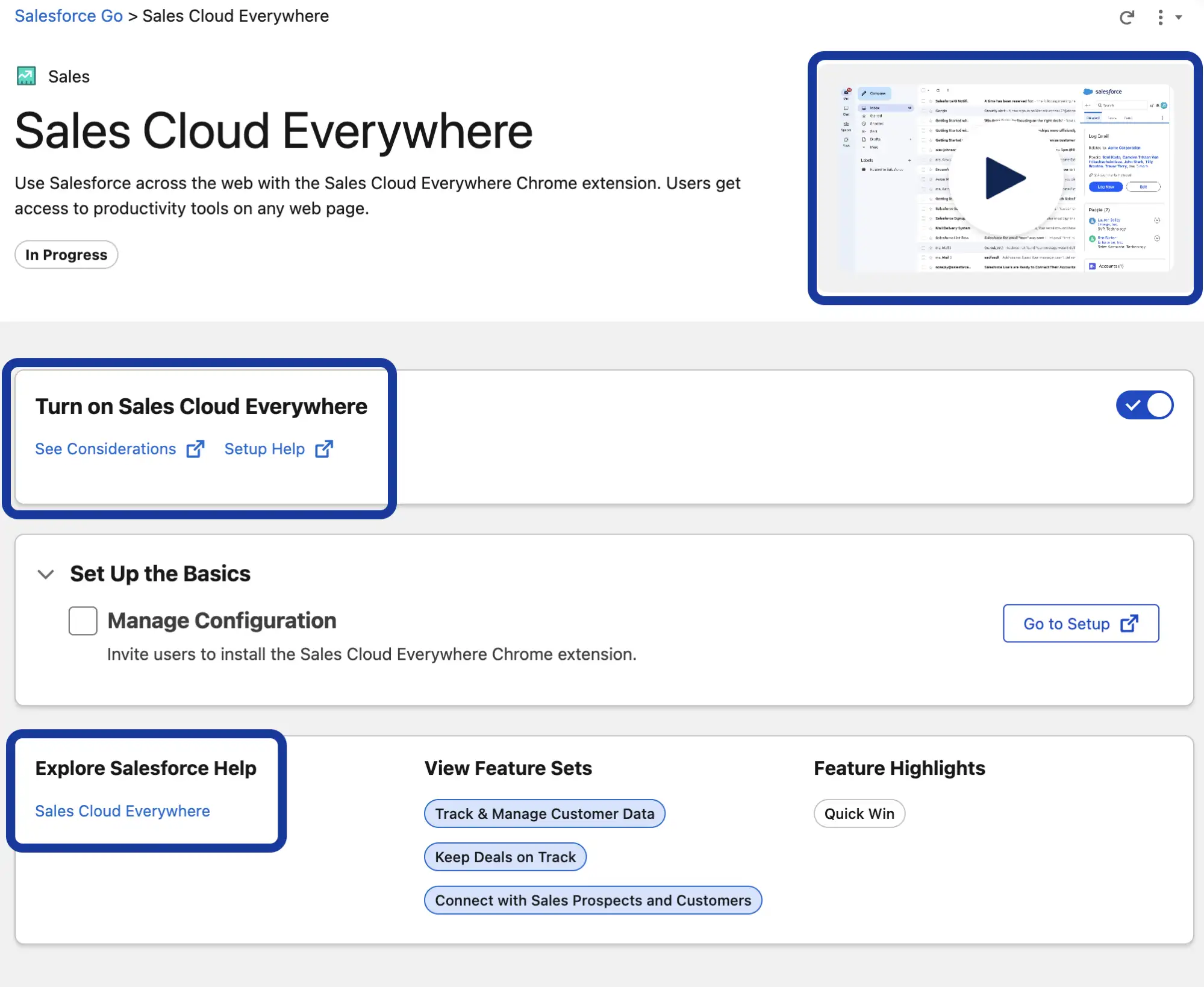
As well as hyperlinks to the written documentation, there are two additional types of resources that you will find across different products:
1. Snapshot: An embedded screenshot preview of the feature or product.
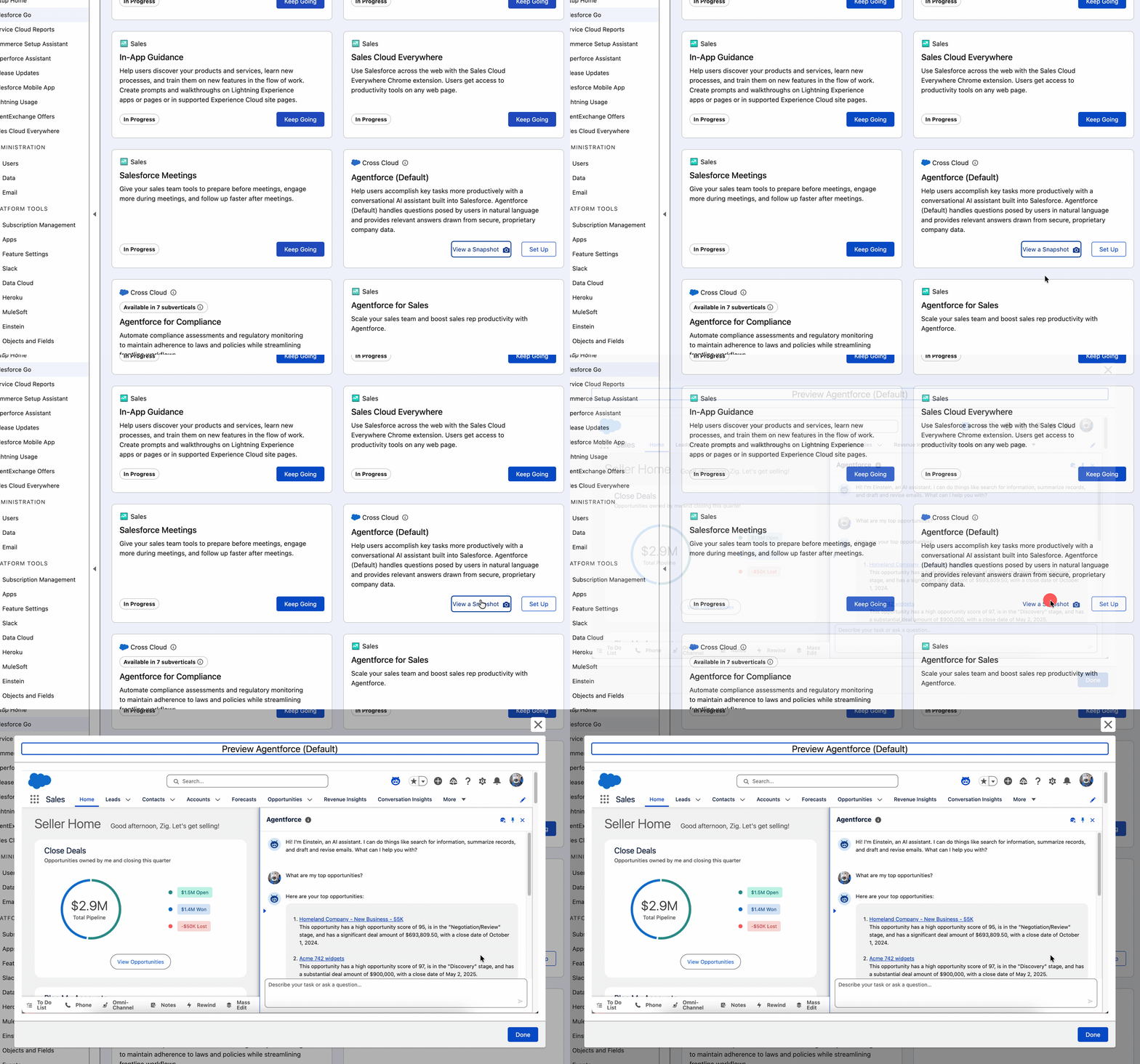
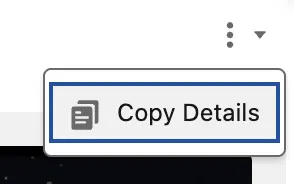
2. Video: While written documentation is great, and so are the other options, sometimes an end-to-end demo of the feature video is exactly what you need. For some of the features, such as the In-App Guidance one above, an embedded video is readily available for you to check out.
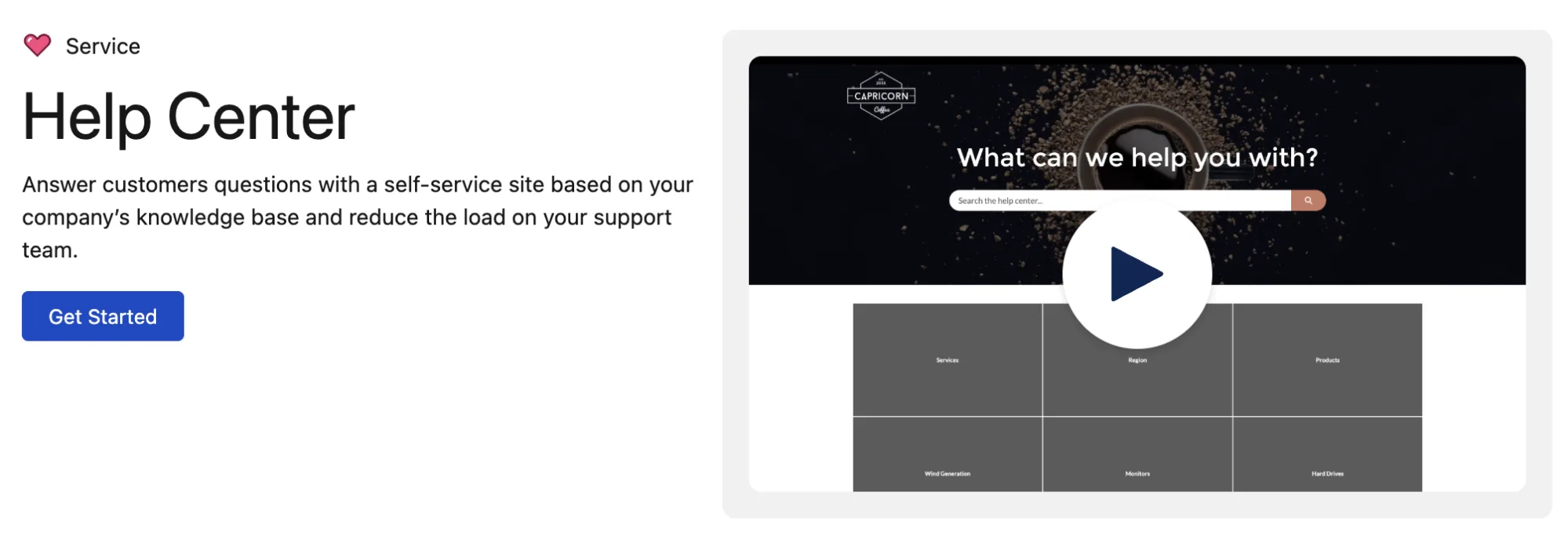
Note that all of these resources can be easily shared with your stakeholders to help get the conversation going – simply click the “Copy Details” button under the arrow available on each tile or after clicking on the feature.
Take Action
By this time, you will already have seen the features that are included and readily available in your org for the different goals to be achieved. You have explored the considerations and overall documentation, so the time has come to buckle up and turn one of these on!
Since Sales Engagement is available, let’s complete the Capture & Auto-Qualify Leads feature set by turning on Sales Engagement. As you can see below, starting this process from Salesforce Go is a breeze!
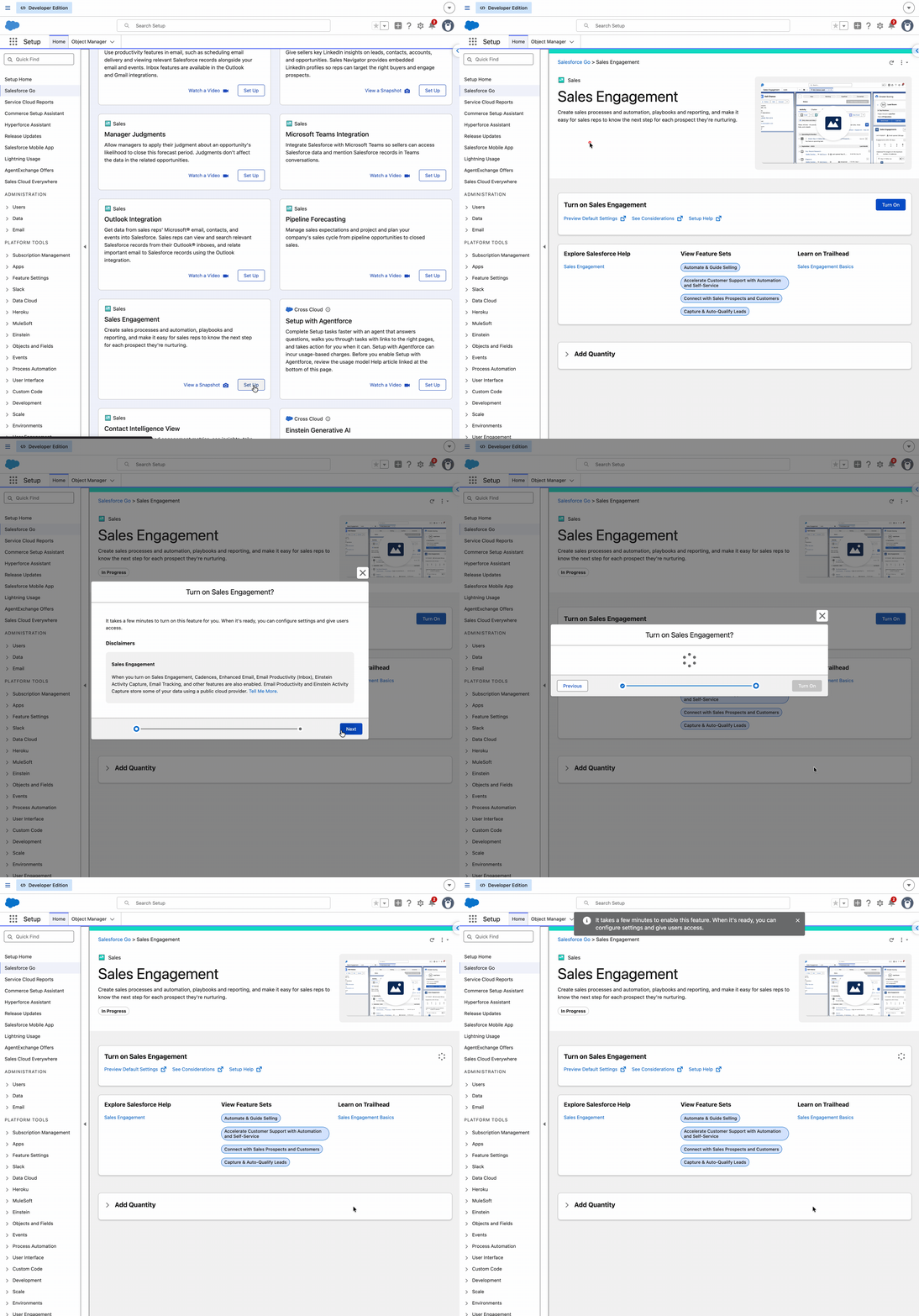
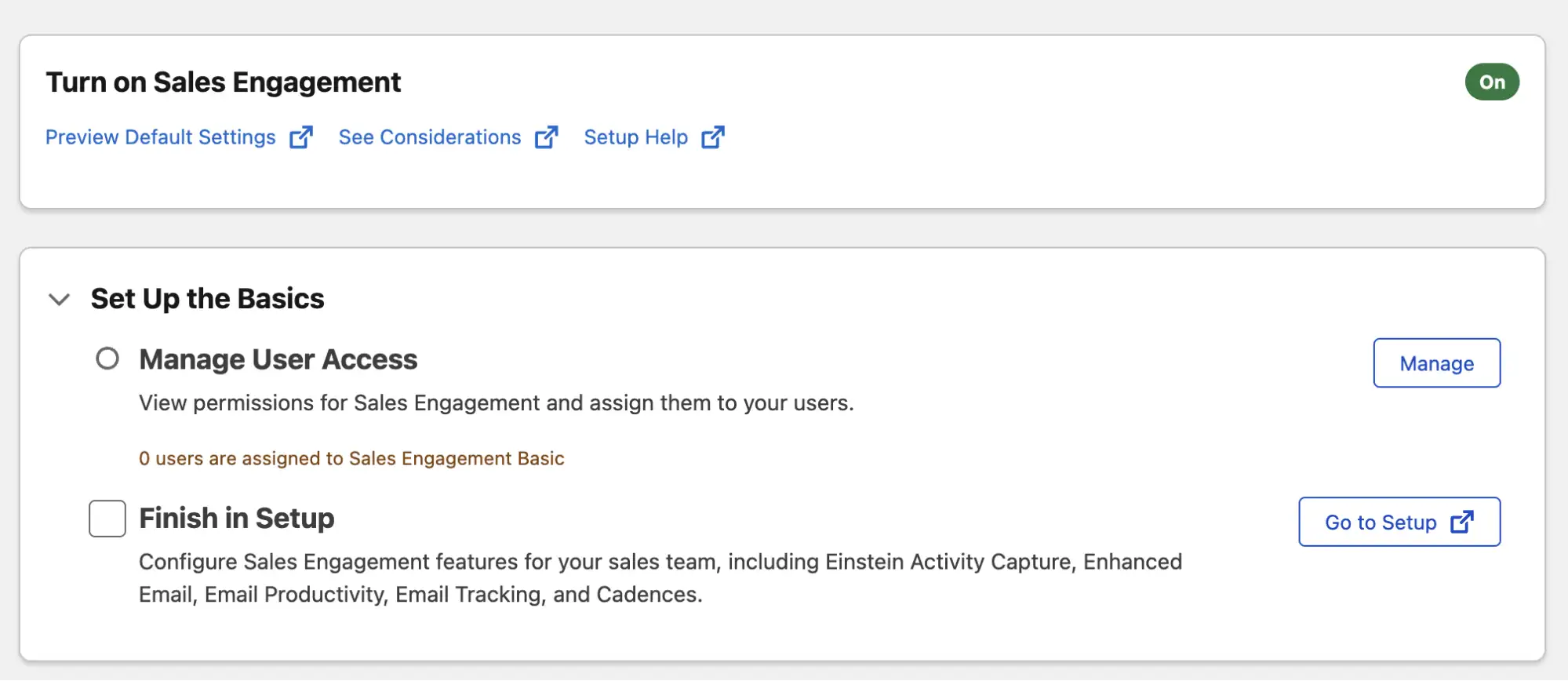
Enabling features is usually just the first step. Once Sales Engagement has been turned on, you will be prompted to continue to the next step, which is configuring the feature.
Below where you turned on the feature (in this case, Sales Engagement), you’ll see some of the different setup steps that are required. Whatever you are able to do directly from Salesforce Go, you can do by pressing various buttons (in this case, I can click the Manage button to give users access to Sales Engagement). Anything that requires you to do something elsewhere, you’ll see a button like the Go to Setup button below.
Monitor Your Features
With Salesforce being committed to ongoing enhancements to Salesforce Go to offer you even more insights and a truly seamless experience, it should come as no surprise that this is also the place to monitor the features you already enabled.
Simply open one of the features that has been marked as “Completed” (like the Sales Engagement feature that we just enabled), and you can keep an eye on it directly within Salesforce Go.
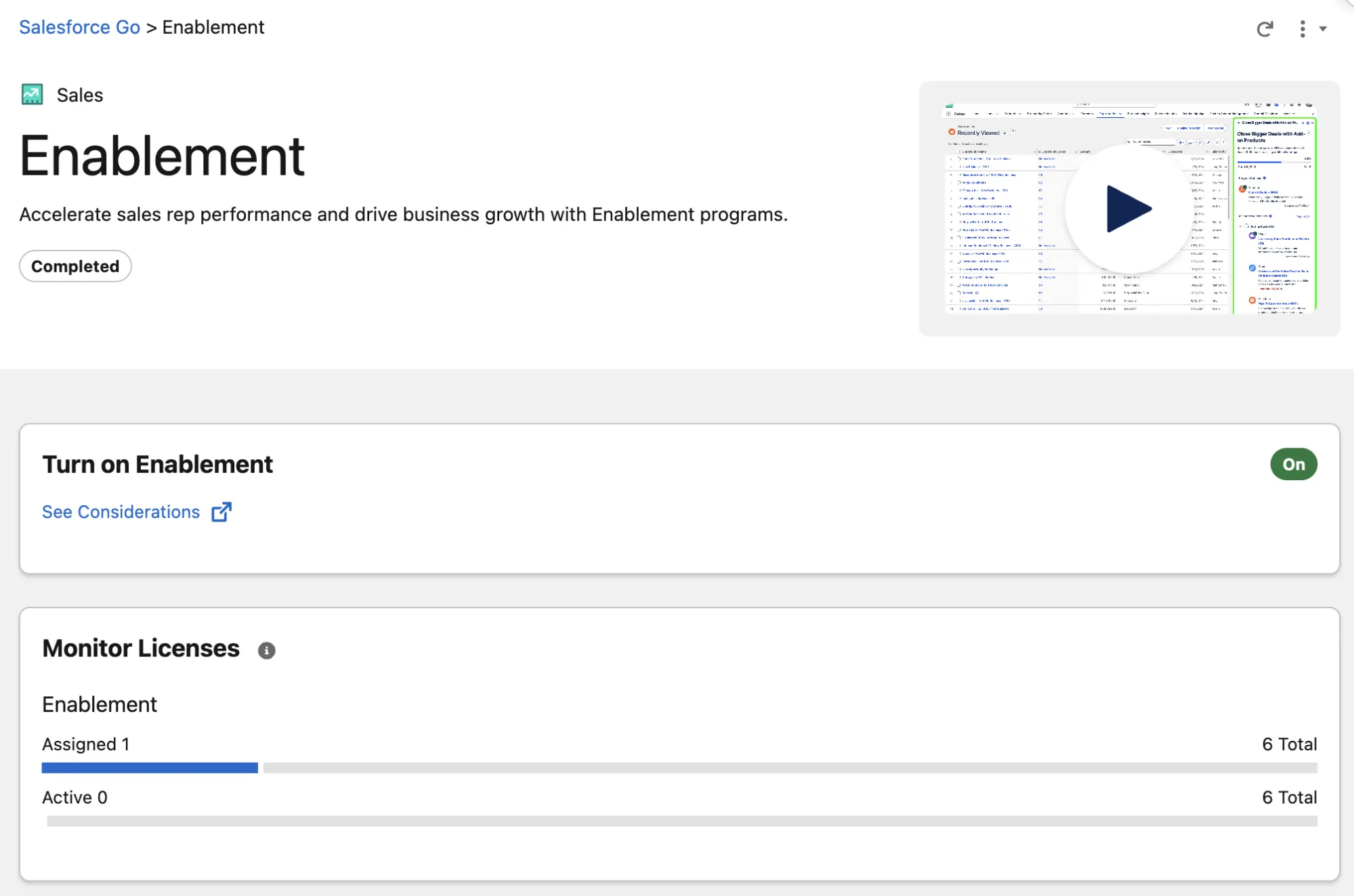
Salesforce Go is the go-to location for feature access management, usage monitoring, and finding out everything there is to know about new Salesforce features and add-ons. Depending on the feature, you will have the option to manage the configuration by assigning permissions and monitoring license consumption where applicable.
Summary
As a one-stop shop for Salesforce Admins, Salesforce Go has the potential to save a significant amount of time right from day one. With the ability to quickly access official resources such as written documentation, snapshots, and even comprehensive videos, there’s no need for admins to find their way around Setup when exploring and enabling features they already have available in their org.
Have you already tried Salesforce Go? Let us know about your experience in the comments below!






Comments: