








Flow is the go-to automation tool in most Salesforce orgs, and for good reason. It can handle a huge range of business processes without requiring developers to write Apex for every little thing.
But as an architect, knowing that you can build something in Flow Builder is only half the job. The more important question is whether it will still work as expected when your org has five times the data, three times the users, and a dozen integrations updating records at the same time.
The tricky thing about Flow scalability is that problems don’t always show up straight away. Your new automation might work perfectly in a sandbox, only to start throwing governor limit errors during a data migration, locking records during a nightly integration sync, or turning into a 40-element flow that nobody wants to touch. All perfectly manageable problems, until they’re suddenly not.
So, what should architects look out for? Here are 10 common Flow design mistakes, why they become a problem as your org grows, and what you can do to avoid them.
1. Treating Flow Like a Single-Record Tool
When you build a record-triggered flow, Flow Builder puts $Record front and center. It’s easy to get into the habit of thinking about one record at a time, particularly when you’re testing your automation manually.
Production, unfortunately, doesn’t always play along.
A Data Loader job, a Bulk API integration, or a mass update from a list view can send 200 records through the same transaction. Each record gets its own flow interview, but those interviews share the transaction’s governor limits. Suddenly, an automation that works perfectly well when you update one record can start running into trouble when you update 200.
The good news is that Flow does some of the bulkification work for you. When multiple interviews in the same transaction reach the same Get Records, Create Records, or Update Records element, Salesforce batches the operations into a single query or DML operation. If different interviews take different paths, those operations are still bulkified in separate groups.
For example, if 100 interviews reach one Update Records element and another 100 reach a different one, that’s two DML operations rather than 200.
However, that’s not usually the problem. The trouble starts when your design introduces unnecessary operations, such as querying separately on several branches when one Get Records element before the Decision would do the job, or calling invocable Apex that runs a separate query for every item it receives.
A few things to keep in mind when designing record-triggered flows:
- Use before-save flows for same-record updates. If you’re only updating fields on the record that triggered the flow, a before-save (fast field update) flow avoids an additional DML operation. Salesforce’s Record-Triggered Automation Decision Guide explains why this approach is significantly faster by design.
- Tighten your entry conditions. There’s little point in starting a flow interview for a record that doesn’t actually need processing. Good entry conditions reduce unnecessary work before it even begins.
- Check your invocable Apex. Flow passes the inputs from multiple interviews to an Apex action as a list. Make sure the Apex method processes that list in bulk, rather than running a query for every item.
The question to ask yourself is simple: what happens when 200 of these records arrive at once? If the answer is “I haven’t checked”, that’s a good place to start.
2. Performing Database Operations Inside Loops
If there’s one Flow anti-pattern worth committing to memory, it’s this one: putting Get Records, Update Records, or Create Records inside a Loop.
It often starts innocently enough. You loop through a collection, retrieve a related record, make a change, and move on to the next item. With five records, everything works beautifully. With 200, that same design can mean hundreds of database operations in a single transaction.
Salesforce imposes governor limits on database operations, including 100 SOQL queries and 150 DML statements per transaction. Exceed the relevant limit and the transaction fails, rolling back its changes.
Those limits aren’t reserved exclusively for your flow. Apex triggers, other flows, managed packages, and other automation all contribute to the same transaction limits. A loop that uses 60 queries might look perfectly reasonable in isolation, but if other automation has already used 45, you’ve got a problem.
The fix is to separate retrieving records, processing them, and saving the changes.
- Retrieve records before the Loop. Use a single Get Records element, with sufficiently selective filters, to collect the records you need.
- Make changes in memory. Inside the Loop, use Assignment elements to update values on the current record, then add the record to an output collection variable.
- Save the collection after the Loop. Use a single Update Records or Create Records element to write the changes to the database.
In some cases, you might not need the Loop at all. Collection Filters can narrow down an existing collection without another database query, while Transform can map one collection into another without manually iterating through the records. Fewer elements to execute can also mean less CPU time.
The underlying principle is straightforward: retrieve what you need, do as much work as possible without touching the database, and save the results in bulk. Your future self (and your governor limits) will thank you.
3. Making Database Changes Too Early or Across Multiple Steps
Even if you’ve avoided putting database operations inside loops, there’s another habit worth checking: how often your flow writes to the database.
Imagine a flow that updates a status near the beginning, changes a related record halfway through, and saves the final values at the end. Each Update Records element might make perfect sense on its own. Together, they could be doing considerably more work than necessary.
Every DML operation can trigger more automation, including Apex triggers, record-triggered flows, validation rules, and roll-up recalculations. Update the same record three times, and you may end up running parts of that automation stack three times too. That adds CPU time and can increase the chances of record-locking errors when other processes are updating the same records.
There’s also a transaction-management issue to consider. If an unhandled error aborts the transaction, Salesforce rolls back the changes made in that transaction. So, multiple updates don’t automatically mean partially saved data.
The risk comes when a flow handles an error and continues, allowing earlier changes to commit, or when the process spans multiple transactions. A screen or Wait element, for example, can separate work into different transactions. If a later step fails, changes committed in an earlier transaction aren’t automatically undone. You can end up with a record that’s only been partially processed, even though every individual step appeared to work as designed.
A better approach is to do your decision-making and calculations first, keep changes in record variables or collections, and write to the database in as few operations as possible towards the end of the flow.
Sometimes multiple writes are necessary. That’s fine. The important thing is to make them deliberate, understand which automation they trigger, and document why each operation needs to happen where it does.
4. Hard-Coding Salesforce IDs
Copying a Record Type ID, queue ID, or user ID straight into a Decision or Assignment element is tempting. It’s quick, it’s easy, and it works perfectly in the org where you built the flow. Then you deploy it somewhere else.
Salesforce record IDs aren’t generally portable between environments. A queue, user, or configuration record in a sandbox can have a different ID in production. Even after a sandbox refresh, records created afterwards have different IDs in each org.
The result is a flow that needs manual attention every time it’s deployed. That’s irritating enough for a single flow, but across a large org it becomes a deployment headache. Miss one hard-coded ID and your automation could start routing cases to the wrong queue or assigning work to the wrong user.
Instead, design flows so they’re portable between environments.
- Look up records by
DeveloperNamewhere applicable. For Record Types, queues (Group), and other configuration records, use stable identifiers such asDeveloperNamerather than copying an environment-specific ID. - Use custom metadata types. These are useful for storing routing rules, thresholds, and mappings that should be deployed alongside your other metadata. One important detail: although custom metadata queries in Apex don’t count towards SOQL limits, queries in Flow do. Retrieve the configuration once, outside any Loop.
- Use custom labels or custom settings where appropriate. These can keep simple configuration values out of your flow logic, particularly when values need to differ between environments.
Here’s a useful rule of thumb: if a value needs to change when you move from sandbox to production, think carefully before embedding it directly in your flow. Configuration should be configuration, not a deployment surprise.
5. Ignoring Fault Handling and Error Paths
If your flow doesn’t have a plan for errors, Salesforce already has a plan for you: an unhandled fault message and, depending on your configuration, an email notification.
That’s not much of an error-handling strategy, particularly in an enterprise org where a failed flow could affect integrations, downstream processes, or hundreds of records.
Elements that can fail, including Get Records, DML operations, Apex actions, and external callouts, need an intentional approach to error handling. That might mean adding a fault path, but simply connecting one isn’t enough. You also need to decide what should happen when something goes wrong.
For example:
- Record-triggered flows protecting data integrity: If the record must not save unless the automation succeeds, don’t log the error and carry on. Use a Custom Error element to block the save and show the user a clear message explaining what needs to be fixed.
- Screen Flow: Give users a useful explanation of what went wrong and what they should do next. A raw system error rarely helps anyone. You should also decide whether earlier changes in the transaction need to be rolled back.
- Asynchronous and background processing: For notifications, asynchronous callouts, and scheduled work, a message on the user’s screen isn’t going to help much. Log failures somewhere queryable, such as a custom error log object or Platform Event, and consider monitoring and retry logic so that failed work doesn’t disappear into the void.
Consistency helps here. Rather than building a completely different logging approach for every flow, consider a reusable error-logging subflow that captures the flow name, record ID, $Flow.FaultMessage, and running user. That gives the team a consistent way to investigate failures and spot recurring problems.
It’s also important to understand what happens to database changes when a flow encounters an error. There are three scenarios to distinguish:
- Unhandled error: The transaction aborts, and Salesforce rolls back its changes.
- Handled fault: Following a fault path doesn’t automatically roll back earlier changes. If the transaction completes, those changes can still commit, and the triggering record can still save.
- Explicit rollback: Where supported, use the appropriate mechanism to roll back the current transaction. The Roll Back Records element is available in screen flows, while Custom Error can be used in record-triggered flows to prevent the save.
As always, the distinction is between changes made in the current transaction and changes that have already been committed in an earlier one. You can’t undo a previous transaction simply by handling an error in the next one.
6. Skipping Realistic Volume Testing
Running Debug against one record and seeing the flow complete successfully is reassuring. It also tells you very little about how that flow will behave in production.
A flow can work perfectly well with one record and still run into governor limits when 200 records arrive in a single transaction. Equally, an automation that performs well in a small sandbox might struggle when it encounters an account with 50,000 child records, a complicated sharing model, or several integrations updating related records at the same time.
The answer is to test the way your org actually operates, rather than relying on a successful Debug run as proof that everything is fine.
- Test in bulk. Use Data Loader or an Apex test to insert or update at least 200 records in one go, reflecting the batch sizes your integrations or data operations are likely to use.
- Use representative data. A Full or Partial Copy sandbox can help expose data skew, deep relationships, and messy legacy values that a Developer sandbox might not contain.
- Test the whole automation stack. Your flow doesn’t run in isolation. Include the Apex triggers, other flows, and managed packages that share its transaction when assessing how much capacity is left.
- Measure resource consumption. Review debug logs for SOQL queries, DML statements, and CPU time. Passing a test is useful, but knowing how close you came to a limit is much more useful.
It also helps to understand that not all testing answers the same question. You’ll want to cover three different areas.
Logic tests confirm that the flow makes the right decisions for the scenarios you’ve defined. Flow tests are useful for regression testing, but they have limitations: supported flow types vary, tests generally use a single triggering record, and asynchronous paths aren’t covered in the same way as synchronous execution.
Transaction-limit tests use Apex test classes to insert or update records in bulk and check whether the automation fits within the relevant SOQL, DML, and CPU limits. These tests can run as part of your deployment process, helping you catch regressions before they reach production.
Load tests help expose problems that are difficult to reproduce in an isolated test, including data skew, concurrent integrations, and record-locking contention. These require representative volumes and timing in a suitable sandbox environment.
Each approach has a different job to do. Use all three where appropriate, and test the scenarios your org is likely to encounter rather than treating one successful run as a guarantee of scalability.
7. Building Large, Monolithic Flows
We’ve all seen the flow that started with a handful of elements and gradually became a sprawling canvas of Decisions, Assignments, and record updates. What was once easy to follow now requires considerable zooming, scrolling, and concentration just to work out what happens next.
The problem isn’t simply that a large flow looks untidy. When logic is difficult to follow, changes become harder to make safely, troubleshooting takes longer, and the risk of breaking an unrelated part of the process increases. It’s also much harder for multiple flow builders to work on the same flow independently.
Recently, Salesforce introduced collapsible groups in Flow Builder, allowing you to organize related elements into named sections and hide the details when you want a clearer view of the bigger picture. While this should make complex flows easier to navigate, it could also encourage teams to keep adding to an already monolithic flow rather than breaking it into smaller, reusable subflows.
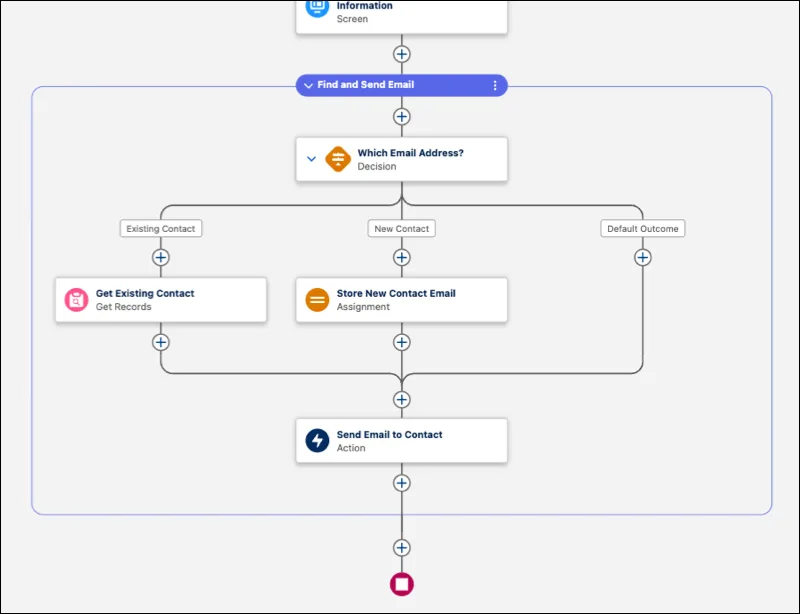
Monolithic flows don’t necessarily have a governor-limit problem. Their biggest issue is maintainability, which becomes increasingly important as your org and your team grow.
Subflows can help break a large process into smaller, more manageable pieces. Good candidates include:
- Repeated logic: Common processes such as address formatting, owner assignment, and error logging that several flows need to perform.
- Self-contained business processes: A discount approval or case escalation process with clearly defined inputs and outputs.
- Logic that changes frequently: Rules that are regularly updated can be easier to maintain when separated from the main flow.
There’s a balance to strike, though. Splitting every few elements into a separate subflow doesn’t automatically make your architecture better. Too many tiny subflows can make execution harder to follow, because flow builders have to jump between several resources to understand one process.
Record-triggered flows need a little additional thought, as they can only call autolaunched subflows. You’ll also need to decide how to organize automation across each object. One enormous flow per object can become difficult to maintain, but dozens of small flows with overlapping entry conditions can be just as challenging.
A sensible approach is to group flows by business purpose, use precise entry conditions, and define trigger order explicitly where execution order matters. Flow Trigger Explorer can then help you understand which flows run on an object and in what sequence.
Whatever structure you choose, document it. Clear naming conventions and a useful description on every flow take very little effort compared with trying to work out why an unfamiliar flow exists six months after its original author has moved on.
8. Ignoring Transaction Boundaries
Governor limits apply per transaction, not per flow. That matters because a process that performs too much work in one transaction can hit a limit even when no individual flow looks particularly expensive.
For synchronous transactions, the Apex CPU time limit is 10,000 milliseconds. Your flow shares that budget with other automation in the transaction, so the available headroom may be considerably smaller than you expect.
One way to address this is to decide deliberately which work needs to happen as part of the original save and which work can happen separately. Salesforce provides several ways to do this:
- Asynchronous paths: An after-save record-triggered flow can move suitable work, such as certain callouts or related-record updates, into a separate transaction with its own governor limits.
- Scheduled paths: If a task doesn’t need to happen immediately, such as creating a follow-up task in three days or sending a renewal reminder, a scheduled path can run it later.
- Screens: In screen flows, displaying a screen ends the current transaction. When the flow continues, subsequent work runs in a new transaction.
- Wait elements: In autolaunched flows, a Wait element can pause an interview and resume it in a later transaction.
- Platform Events: Publishing an event and processing it with a platform event-triggered flow can decouple the original operation from the work that follows.
Moving work into a separate transaction isn’t a free pass, however. It changes when that work happens and what happens if something goes wrong. The original save may succeed even if the asynchronous work subsequently fails, and the later transaction cannot roll back changes that have already been committed.
That might be perfectly acceptable for a notification or data enrichment process. It’s a different story if the user expects a related record to be updated before they can continue with the next step of a business process.
The architectural decision is to separate what must happen now from what can safely happen later. Moving everything asynchronous might sound like an easy way to avoid limits, but it can introduce consistency issues and make failures harder to diagnose. Choose your transaction boundaries based on the business requirement, not just the governor limits.
9. Overlooking Navigation Behavior in Screen Flows
Screen flows introduce another consideration that can catch you out: what happens when a user clicks Previous?
Imagine a guided process that creates a record before displaying the next screen. The user reaches that screen, realises they’ve entered something incorrectly, and clicks Previous to make a change. They then click Next to continue.
If the flow creates the record again when the user moves forward, you could end up with duplicates. Alternatively, a related record might reflect the values from the user’s first attempt rather than the final information they entered.
This is particularly important in longer sales and service processes, where users might navigate backwards and forwards several times. A design that works when someone completes the flow in one uninterrupted sitting can behave quite differently when they change their mind halfway through.
There are a few ways to avoid these problems:
- Save at the end where possible. Collect inputs across screens in variables, then perform database operations once the user has completed the process.
- Control navigation deliberately. If an earlier step has already committed changes, consider whether users should be able to navigate backwards past that point. Hiding the Previous button can be appropriate in some scenarios, although it shouldn’t replace proper transaction design.
- Make the process idempotent. If an early commit is unavoidable, design subsequent execution so it doesn’t create the same record twice. For example, retain the created record’s ID and update the existing record rather than creating another one.
It’s also worth making the user experience explicit. If a record has already been saved, tell the user. Don’t leave them guessing whether clicking Previous will undo their changes, because it won’t automatically do so.
The important thing is to test navigation as well as the happy path. Walk through the flow as a real user would, including going backwards, changing inputs, and returning to screens that trigger additional processing. It’s a simple way to catch duplicate-record problems before they become a data-cleanup exercise.
10. Neglecting the Underlying Data Model
Sometimes the problem isn’t the flow at all. It’s the data model that the flow has to work with.
You can optimize your Decisions, reduce unnecessary Get Records elements, and move suitable work into asynchronous transactions. But if your automation repeatedly updates heavily shared parent records or queries millions of records using poorly selective filters, there’s only so much Flow design can do to help.
Here are a few data model considerations worth checking before blaming Flow performance.
Data Skew
Salesforce recognizes data skew as a potential performance issue when a parent record has more than 10,000 child records, or a single user owns more than 10,000 records of an object. These figures are useful warning signs, not hard limits at which every org suddenly develops problems.
The actual impact depends on the relationships involved, the sharing configuration, and the operations being performed. Skew can increase the risk of record locking when many child records are updated together, or make sharing recalculations more expensive when access changes affect large numbers of records.
Flows can make matters worse if they update the same parent every time a child record changes. Before adding that kind of automation, consider whether the parent genuinely needs to be updated for every child change and whether the process can be designed differently.
Non-Selective Queries
The performance of a Get Records element depends partly on how Salesforce can retrieve the records matching its filters. A query that works well on an object containing a few thousand records might become slow, or encounter query limitations, as that object grows.
Where possible, filter on indexed fields such as record IDs and external IDs, or other fields that Salesforce indexes by default. Keep filters sufficiently selective to avoid retrieving a much larger set of records than the flow actually needs.
There’s no single record count at which every query becomes a problem. The important questions are how much data the query examines, how many records it returns, and how those figures are likely to change over time.
Recreating Features the Platform Already Provides
If a flow calculates totals across related records every time one of those records changes, ask whether a native roll-up summary field could do the job instead.
Not every relationship supports native roll-up summary fields, of course, and more complex requirements may justify automation. But if Salesforce already provides a suitable feature, rebuilding the same functionality in Flow can introduce unnecessary processing and additional maintenance.
Choosing Relationships Without Considering Automation
Master-detail relationships are useful when the data model calls for tightly linked records, but they also have implications for parent-record locking, ownership, and sharing. Those implications become particularly important when child records are updated frequently or in large volumes.
The relationship itself might be entirely appropriate. The mistake is choosing it without considering the automation that will run whenever those records change.
Before designing a significant flow, ask yourself how the records will be accessed, how many there might be in three years, and which records are likely to be updated most frequently. Those answers should influence the design from the beginning, rather than becoming a performance investigation later.
Final Thoughts
Flow has matured into a serious automation tool that can support complex enterprise processes. But having a capable automation tool doesn’t remove the need for good architecture.
The flows that scale well are designed to handle bulk updates, minimize unnecessary database operations, manage errors deliberately, and make sensible use of transaction boundaries. Just as importantly, they sit on top of a data model that can support the volumes and patterns of activity the org is likely to encounter.
If you’re reviewing an existing org, these 10 mistakes give you a practical starting point. Begin with the flows running on your highest-volume objects, then look at the automation that shares their transactions. That’s often where you’ll find the most useful opportunities to improve performance and reduce risk.
When you’re building something new, think beyond whether it works with a handful of records today. A little planning now can save your team a much more complicated investigation when the org has grown.
Which of these Flow mistakes have you encountered in your own org? Let us know in the comments.