






If you manage an established (and possibly complex) Salesforce org, it’s worth checking your storage numbers this week – because a setting you never asked for may already be eating through your limit.
Imagine this: an 11-year-old org with a handful of licenses typically uses just around 8GB of storage in its entire history. So if you see the same org sitting at 169% of its storage limit after Spring ‘26 – you’ll wonder…what changed? Read on to know whether or not your org is affected by this setting, and what to do about it if it is.
What Changed?
If your org actively uses Einstein Activity Capture, then you probably know about the Sync Email as Activity setting. It isn’t new, and it’s been available with EAC for a while. What used to be an optional setting, though, changed in Spring ’26 when Salesforce stated that Sync Email as Activity is automatically enabled for all new orgs setting up Einstein Activity Capture, as well as for existing EAC orgs that do not have Email sync enabled.
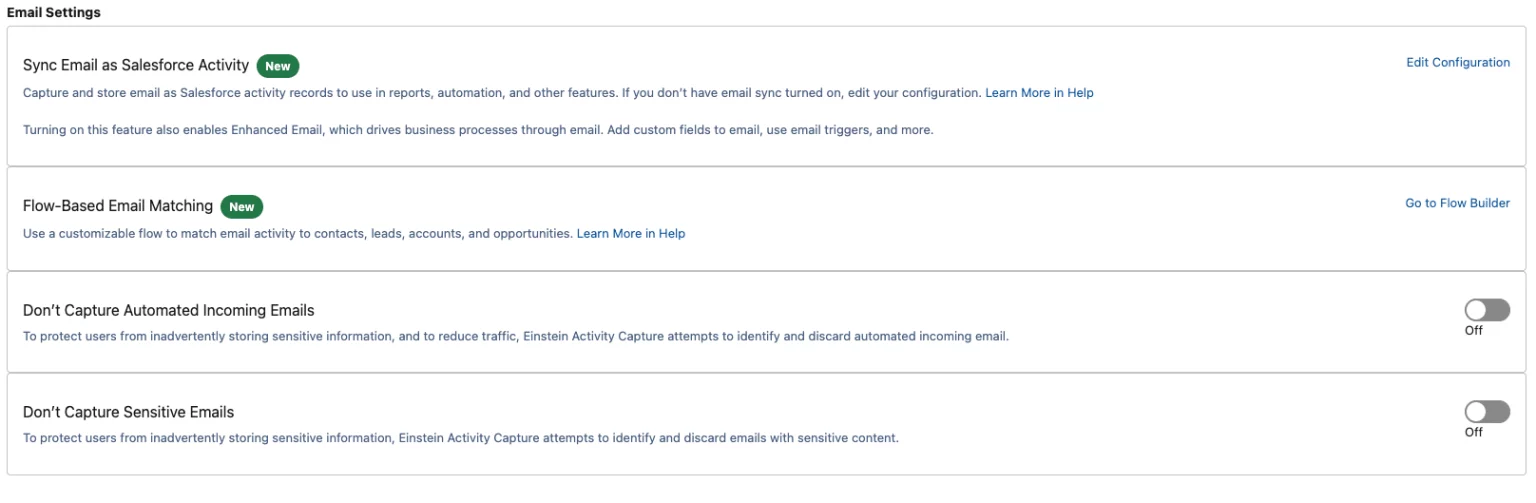
This means that before Spring ‘26, Salesforce only auto-enabled the feature for brand-new orgs setting up Einstein Activity Capture for the first time. If you were an existing org that hadn’t opted into email sync, you were left alone.
Today, because Salesforce auto-enables Sync Email as Activity for existing EAC orgs too, there’s no prompt or opt-in screen that notifies you it’s switched on. The one small mercy is that Enhanced Email is no longer bundled in automatically.
How Does This Affect Me?
Once Sync Email as Activity is on, every synced email becomes an Email Message / Task record inside your org. And unlike in the past, when Salesforce stored a lot of this content off-platform (AWS specifically), that data is no longer kept separately. Email Message and Task records count against your Salesforce data storage, just like any other record.
This is the reason why the more established or mature orgs may feel the impact of this setting more. For any org that’s been quietly accumulating email through a busy sales or service team, that’s potentially heaps of message history landing in storage all at once – with no warning.
How to Turn the Setting Off
The bad news is, this setting cannot be disabled (yet).
This is actually the part that’s caught people out. Right now, admins have no toggle to disable Sync Email as Activity once it’s been auto-enabled. Salesforce’s own help documentation confirms this directly, and there have also been instances of users calling in to Salesforce Support only to have them offer options to expand their data storage.
The doc also says that Salesforce is planning an enhancement allowing admins to turn it off, but there is no committed date yet. So for now, our hands are tied on disabling it, but there’s a way to manage it slightly while we wait for that toggle.
What You Can Do About It
Firstly, check whether you’re affected or not. I have heard of an instance where the org still somehow does not have it enabled even after Spring ‘26, so it’s good to confirm first.
- Check whether it’s been switched on for you: Don’t assume you’re safe just because you haven’t opted into anything. If your org has Einstein Activity Capture set up at all, check your EAC configuration from Setup to see whether Sync Email as Activity is active, and look at your storage usage trend over the last release cycle for a sudden jump in Email Message records.
- Get a real sense of your exposure: If the setting is on, look at how much email volume your teams are actually generating. If your org has a handful of light email users, you might barely notice and may have more time before storage reaches its limits. On the other hand, an org with busy sales or support inboxes may only be days away from hitting their limits.
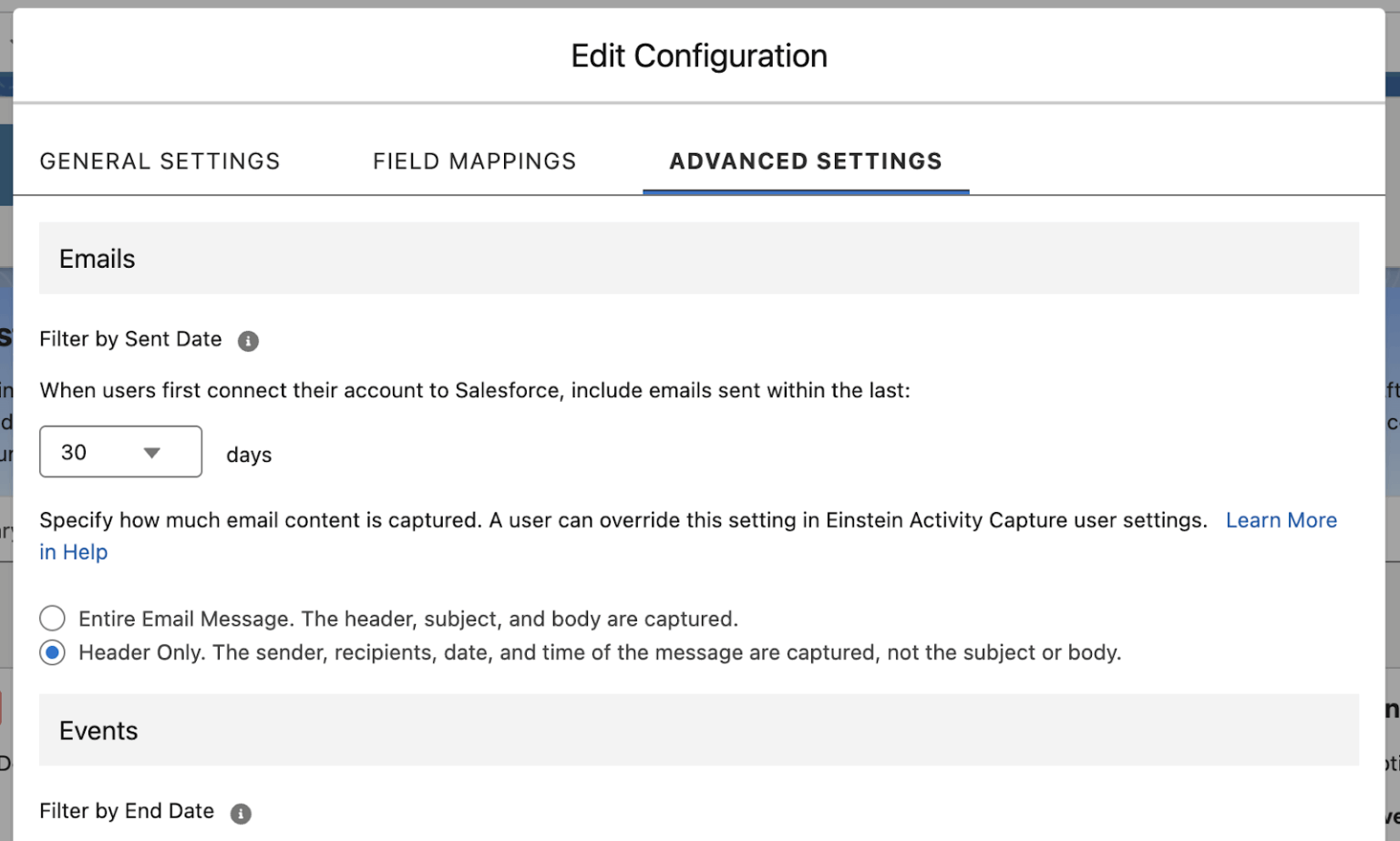
- Consider header-only capture: I say “consider” because there is a trade-off. The header-only capture option will only store the sender, recipient, and timestamp, meaning the subject line and message body aren’t included. While this may significantly reduce the amount of what gets stored, it’s not compatible with some Einstein generative AI features, so if your team relies on Einstein Email Insights or wants Agentforce drafting replies off email context, this is going to affect that negatively.
- Deletion and cleanup are key: This is true especially for orgs who may have already reached their limits because of this setting, and it is also the main solution your admins have. Moving forward, it may be worth setting a regular cadence for reviewing and clearing out email activity that doesn’t need to stay in Salesforce long-term.
If you’re going to end up discussing archiving or additional storage with Salesforce anyway, it’s much better to bring your own usage projection to that conversation. Reacting to an overage notice you didn’t see coming is understandable at this point, but it would be good to have numbers to take action on.
Final Thoughts
While it feels frustrating to suddenly hit your storage limits because of a setting you cannot disable (plus only being offered to purchase additional storage as a solution), this does not feel like a malicious action on Salesforce’s part.
This setting is an essential one, as email visibility clearly has real value for orgs using Agentforce or leaning into activity-based reporting. But for orgs that want neither, the cost is coming onto them fast as an unbudgeted storage bill. So if you’re managing a mature org that’s never had a storage problem before, this is worth checking before your data storage limits force you to.





Comments: