

We all know that Salesforce has three major releases a year, and each one of these releases updates the Salesforce API version, currently at v67 as of the Summer ‘26 release.
Salesforce will support every API version for a minimum of three years, and currently versions 31 onwards are supported. For years, Salesforce did not actively prune old API versions, but as of this year, it has started to do so.
It is a good practice to keep your API versions updated anyway, with many benefits for your code and you. In this article, we will walk through how to update your codebase to use a newer API version, the benefits of keeping your codebase up to date, how to test it effectively, and the pitfalls to watch out for when updating the API version.
Where Do I Find My API Version?
First things first, where do I find the API version of my code?
If you have retrieved your code using the SF CLI and/or your local IDE like VS Code, you will see that every class, trigger, Visualforce page, and Lightning component has a *-meta.xml file. That file includes some metadata, including the metadata type, whether it is active, and the API version, as well as other information depending on the metadata type.
For example, for an Apex class, your .cls-meta.xml file would look something like this:
<?xml version="1.0" encoding="UTF-8"?>
<ApexClass xmlns="http://soap.sforce.com/2006/04/metadata">
    <apiVersion>62.0</apiVersion>
    <status>Active</status>
</ApexClass>
In this metadata file, we can see that we are looking at an Apex class that is active and on version 62.0 of the API. For a Lightning Web Component, a simple metadata file might look like:
<?xml version="1.0" encoding="UTF-8"?>
<LightningComponentBundle xmlns="http://soap.sforce.com/2006/04/metadata">
    <apiVersion>64.0</apiVersion>
    <masterLabel>JWT Generator</masterLabel>
    <description>Allows the generation of JWT tokens for use in testing</description>
    <isExposed>true</isExposed>
    <targets>
        <target>lightning__AppPage</target>
    </targets>
</LightningComponentBundle>
This metadata file also includes an API version, some label and description metadata, and details of where the component is targeting and if it is available. You can also see the API version under the “Version Settings” tab for some components within the setup menu, as shown in the screenshot below.
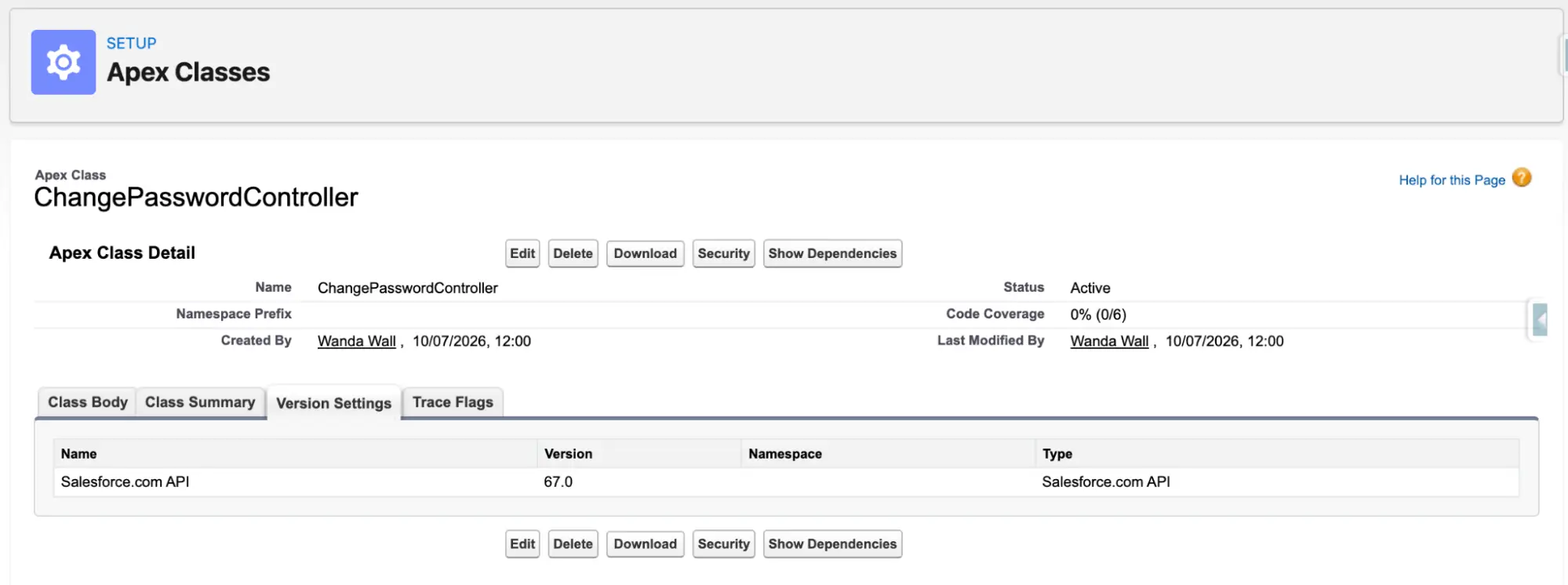
So, we know where to find the API version. Now, how do we change it?
Updating Your Code API Version
Updating your API version is simple. If you are looking at your code in the setup menu like in the previous screen, you can press “Edit”, then navigate to the “Version Settings” tab again and change the API version in the dropdown, as shown in the screenshot below.
Note: if you have managed packages installed in the org that your code depended on, these and their versions would also be listed in the same screen.
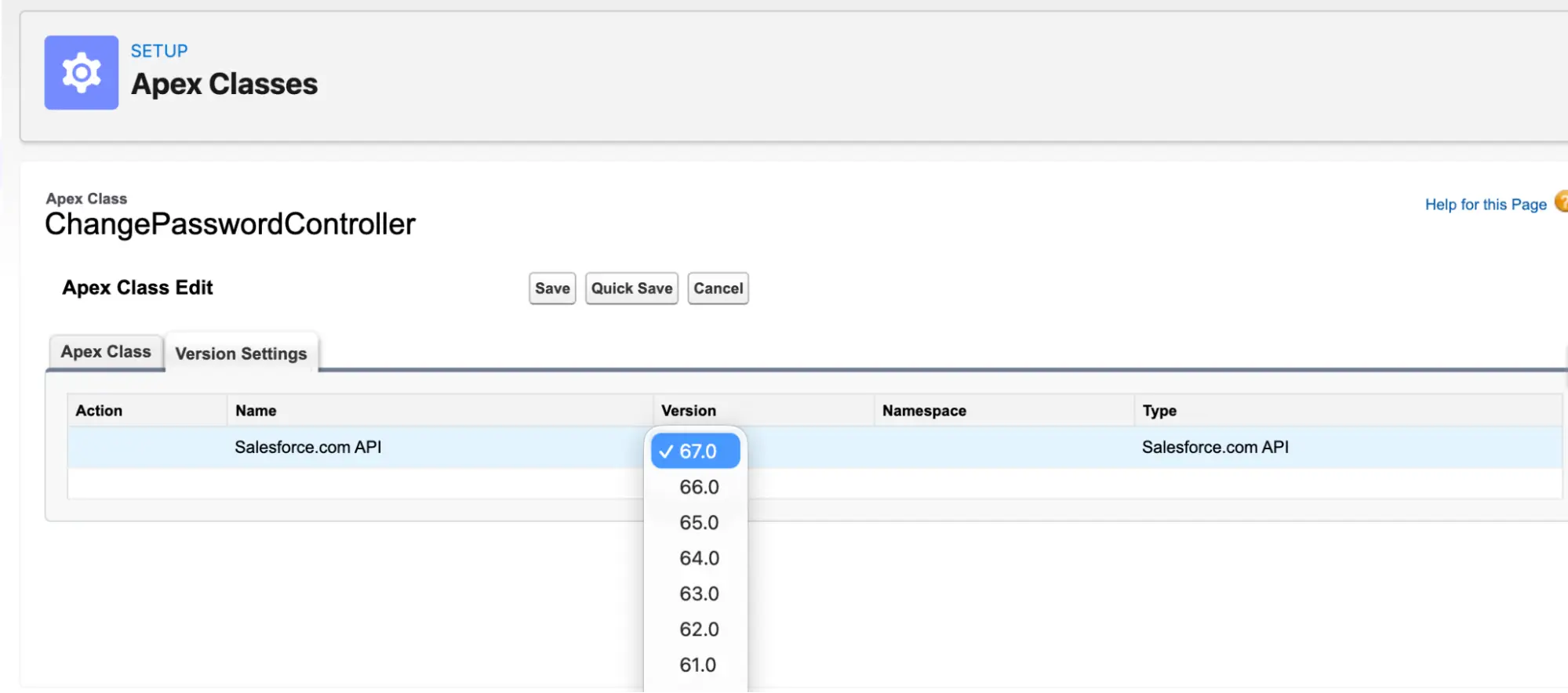
With a local version of the code, simply change the number in the *-meta.xml file to the API version you want to use, save the file, and deploy the metadata item to the org.
That’s it! If it deploys successfully, you have just updated the API version.
The Benefits of Updating Your API Version
There are always two sides to such an update, the proverbial carrot and stick, that give you a reason to keep your API versions up to date.
Let’s quickly cover off the stick part. I don’t want to dwell on it too much, but a primary reason is to ensure that Salesforce does not begin to deprecate a version of the API you are using, leaving you with only a 12-month window to make updates.
In a large codebase, this can amount to tens or hundreds of thousands of lines of code and functionality to test and retest, removing your ability to work on new functionality while you are working on updating these items.
More compelling to me are the benefits of updating your API version, starting with the ability to use the latest features of the language. Some language or framework features are only available in the API version they are added in or later. This means that if you do not update your API version, then you are missing out on these newer features. These could be as small and simple as the ability to use the Assert class in your tests, making them more readable and flexible, or bigger items such as the automatic enforcement of with sharing in v67.0 that makes your code more secure by default.
Equally, some objects and platform features are only available in specific versions of the Salesforce API, meaning that if you want to use them you need to ensure that you are updating your code to get the benefits of all these features. A good example here is the BatchApexErrorEvent standard Platform Event that is only available in API v44 and later.
Perhaps the most important reason, in my mind, is that updating the API version gives you a great reason to review and improve your code. Over the years, we all accumulate technical debt in our codebase and have a list of little updates we would love to make, patterns we would like to implement, and improvements that would make our codebase more robust. Going in and updating the API version of your code is a great excuse to review the code more generally and check it is up to standard.
Some good examples of things I often check are:
- Could the error handling be improved?
- Is there any part of this that overlaps with other items that could be extracted and refactored?
- Are there any new features I could use that would improve the code and simplify it?
- Are there any lingering snag items I could resolve? These include legacy debug statements, strings that could be labels, comments that could help improve the code, etc.
Keeping your code up to date and clean is an important ongoing task, and if you are introducing AI-assisted or driven development, then it becomes even more important that you both ensure you are maintaining code, understanding it, and enabling it to be managed in the long run.
Now we understand why we should update the API version and how to do it. The next thing is to ensure we understand how to test it.
Testing Your Updated Code
Changing the API version, in theory, should not break any of your code. The primary instances where you will have issues are when a feature is deprecated and no longer available, or you have made an update to the code itself to use a new feature.
The first step once you have made your updates is to run all your unit tests again. Once again, having a well-defined and structured test suite in your codebase will save you. Ensure you have updated and reviewed your test code to use the latest API version as well to ensure that it can exercise all the necessary features.
Once all your tests have been reviewed and are passing, you should then verify the behavior of the code by exercising it in the manner it will be used, be that through the UI, an API, a Flow invocable action, or however else. Thorough regression testing is important to verify behavior as well, particularly if you are updating your codebase to use a new feature.
Finally, I always recommend spending time doing an impact analysis and then testing appropriately based on this.
For example, if I am making updates on a core class that is used in multiple critical parts of by business processes, and if I have changed functional code within the class, then I am likely to assess the impact as greater and validate a broader range of behavior through regression testing than if I was only updating the API version on a small class that was used in one small portion of the codebase that is not often touched.
In general terms, a risk-based approach to testing is the most appropriate way.
Pitfalls to Watch Out For
There are several common pitfalls you should keep in mind when updating API versions on your codebase that can save you time debugging issues.
Security Changes
Often new API versions will enhance security measures, such as in v67 (Summer ‘26) wherein user mode was automatically enforced on SOQL queries and DML, and with sharing became the default for Apex code.
It is critical that you verify any security changes that are imposed through an API change, test their impact, and communicate to administrators and other team members the impact of these changes in the system’s configuration.
Release Windows and API Mismatch Across Environments
It is important to remember here that during a release or preview window, some environments may have access to different versions.
For example, a preview sandbox may have access to a later version than Production, so if you update the API version of an item, or even create an item of code using a later API version, it may not be deployable to the Production environment.
This can also happen between sandboxes if one is on the preview release and another isn’t, so keep an eye out on the release windows (and our handy blogs to help you prepare) to ensure you are not going to clash.
Calling Code Paths and Dynamic Apex
One of the biggest areas where API version mismatches can happen is when working with dynamic Apex or SOQL. If we run the following code:
List<String> fields = new
List<String>(User.SObjectType.getDescribe().fields.getMap().keySet());
The results we retrieve will depend on which version of the API we run the code under. If we run the code on v63 of the API in an example developer org, we get 186 fields in the list. If we use v62.0 of the API, we get 184, as two fields do not exist for this API version.
If this code were used to generate a query string, we would need to ensure that the class executing the query was on a later version of the API than the class generating the query string. This is just one example of where dynamic Apex can be impacted by different API versions running throughout the codebase, potentially blocking you from utilizing certain newer fields and core features.
Deprecated Methods
Often the release notes will deprecate some Apex methods as well as adding in new ones, so it is worth making sure you are checking this as well, as it may be a reason to delay the update or increase the level of testing as broader changes are made to the codebase.
Pipelines and External Systems
Any external systems that you are using to either automate code deployment and testing, or that are integrating with your environment, should be checked as well to ensure they are updated to support the newest API versions where appropriate.
Deployment and build tools must be on the latest version of the API used in your code to ensure they can deploy it correctly, by updating the sourceApiVersion parameter of your sfdx-project.json file.
Similarly, if you have updated your codebase to use a new object or field that you want an external integration to be able to access, you need to update the API version in the external systems’ API requests. This can require additional testing if the payloads have changed and may have other impacts.
Small Incremental Changes and Big Changes
One final pitfall that many developers fall into is making lots of API version updates at once and deploying them all, then having issues debugging any problems that arise because of the volume of updates.
As with most development work, small incremental changes are much easier to handle and work with than big deployments, and likely to be much faster to work through as well.
What About Non-Code Items?
It is worth just touching on the fact that non-code items such as Flows also have API versions associated with them, and these will also need reviewing and updating over time as new features are released.
The same process should be followed for testing and impact analysis, and as mentioned above, if you update the code behind an invocable action, then retesting any Flows that use it is key.
Summary
That covers the why and how of updating your codebase’s API version to ensure that it stays current and relevant.
Are there any additional steps you typically take, pitfalls you want to share, or benefits of updating that I have missed?
Let us know below, and use the following handy question list when next updating your API versions.
- What other metadata references this? Has it been updated?
- Are my unit tests current, using the same API version, and passing?
- Have I updated my build pipeline to allow the use of this API version?
- Have I validated any security changes?
- Have I checked for any deprecated methods?
- Have I performed an impact analysis?
- Have I executed the needed manual regression tests?
- Am I making small, manageable changes?
- Have I reviewed the code for any other improvements I could make to leave my codebase cleaner?