

Most Salesforce Power BI integrations begin with one practical request: bring CRM data into a dashboard. The first connection may be simple, but more data, custom objects, reporting models, refreshes, and governance controls can make it business-critical infrastructure.
A scalable Power BI integration with Salesforce must continue to work as demand grows, without accumulating manual work, duplicated logic, or fragile integrations.
Why Power BI Salesforce Integration Gets Harder at Scale
Growing record counts make full imports slower. Custom objects and relationships add modeling complexity, while Salesforce schema changes can affect Power BI queries. If several datasets recreate the same logic independently, teams can end up with conflicting metrics.
The built-in Salesforce Reports connector returns no more than 2,000 rows, while object-level imports require report logic to be rebuilt in Power BI. Manual exports cannot support dependable refreshes, and custom scripts introduce code, infrastructure, credentials, and monitoring.
Security and operations also matter. Teams need to know whose permissions are used, how credentials are revoked, what changed when a refresh fails, and who maintains the integration.
What a Scalable Power BI Integration With Salesforce Must Handle
Before choosing how to connect Salesforce to Power BI, define the requirements the connection must meet:
- Data coverage: the required standard and custom objects, fields, relationships, Salesforce reports, and joined reports.
- Volume and freshness: dataset size, refresh frequency, acceptable delay, and whether incremental loading is required. “Real-time Salesforce data in Power BI” requires a different architecture from scheduled Import refreshes.
- Reporting logic: which definitions remain in Salesforce, which are rebuilt in Power BI, and whether data from other systems must be transformed or combined.
- Security and operations: user identity, permissions, credential expiry and revocation, activity records, failure monitoring, and ownership of schema changes.
- Maintenance: the code, infrastructure, specialist skills, and vendor support required over the integration’s lifetime.
The Standard Starting Point: Power BI’s Built-In Salesforce Connectors
Power BI includes two native Salesforce connectors. The Salesforce Reports connector imports the output of an existing report, while the Salesforce Objects connector imports Salesforce objects as separate tables.
Microsoft’s Built-In Salesforce Reports Connector
The Salesforce Reports connector requests a Salesforce report available to the authenticated user. Salesforce applies the report’s record scope, filters, and selected columns, and Power BI imports the resulting rows as one table.
- Data and reporting logic. The report definition remains in Salesforce. Power BI receives the prepared result without the underlying objects or relationship structure and handles any additional transformations, measures, and visualizations.
- Scale and limitations. The Salesforce Reports connector returns no more than 2,000 report rows. Each refresh imports the report result again. Changes to the report’s columns alter the imported schema and can break dependent Power Query steps or visuals. Joined-report blocks are not converted into related Power BI tables.
- Best fit. The Salesforce Reports connector suits a small, stable Salesforce report that contains all required data and remains below 2,000 rows.
Microsoft’s Built-In Salesforce Objects Connector
The Salesforce Objects connector connects through the authenticated user’s Salesforce API access and imports selected standard and custom objects as separate Power BI tables.
- Data and reporting logic. The Salesforce Objects connector returns object records and relationship-key fields, but not Salesforce report types, filters, formulas, groupings, or record scope. The BI team must define table relationships and recreate the required reporting logic in Power Query, the semantic model, or DAX.
- Scale and limitations. The Salesforce Objects connector has no overall 2,000-row limit. However, each Power BI semantic model runs its own Salesforce API queries. Models importing the same objects repeat the extraction and consume the Salesforce org’s shared API allocation.
Power Query sends supported filters and transformations to Salesforce. Operations that cannot be folded are performed after data retrieval, increasing data transfer and refresh time. Incremental refresh reduces Salesforce extraction only when its partition filters reach the source.
- Best fit. The Salesforce Objects connector suits object-level models managed by a BI team that understands the Salesforce schema and can own relationships, reporting logic, API usage, and refreshes.
When the Built-In Salesforce Connectors Are Not Enough
The built-in connectors may be enough for a small report or a focused object-level model managed by one BI team. Additional integration capabilities become valuable when an organization needs to:
- Export more than 2,000 Salesforce report rows or work with joined-report data.
- Reuse the same approved Salesforce data source across multiple Power BI models and teams.
- Filter large datasets before extraction and configure efficient incremental refresh.
- Manage individual credentials, access, and revocation in Salesforce.
- Monitor source changes, exports, and connection activity centrally.
- Document Salesforce objects and relationships for Power BI developers.
When several of these requirements apply, managing each connection separately in Power BI becomes harder to scale and govern.
How Power BI Connector for Salesforce Supports Scalable Analytics
Power BI Connector for Salesforce, developed by Metrica Software, takes a different approach from Microsoft’s built-in connectors. Installed in the Salesforce org, it adds a Salesforce-managed layer where teams define and reuse the data sources Power BI can retrieve.
Try Power BI Connector for Salesforce on AppExchange with a free 30-day sandbox trial or a preconfigured Test Drive.
How Data Moves from Salesforce to Power BI
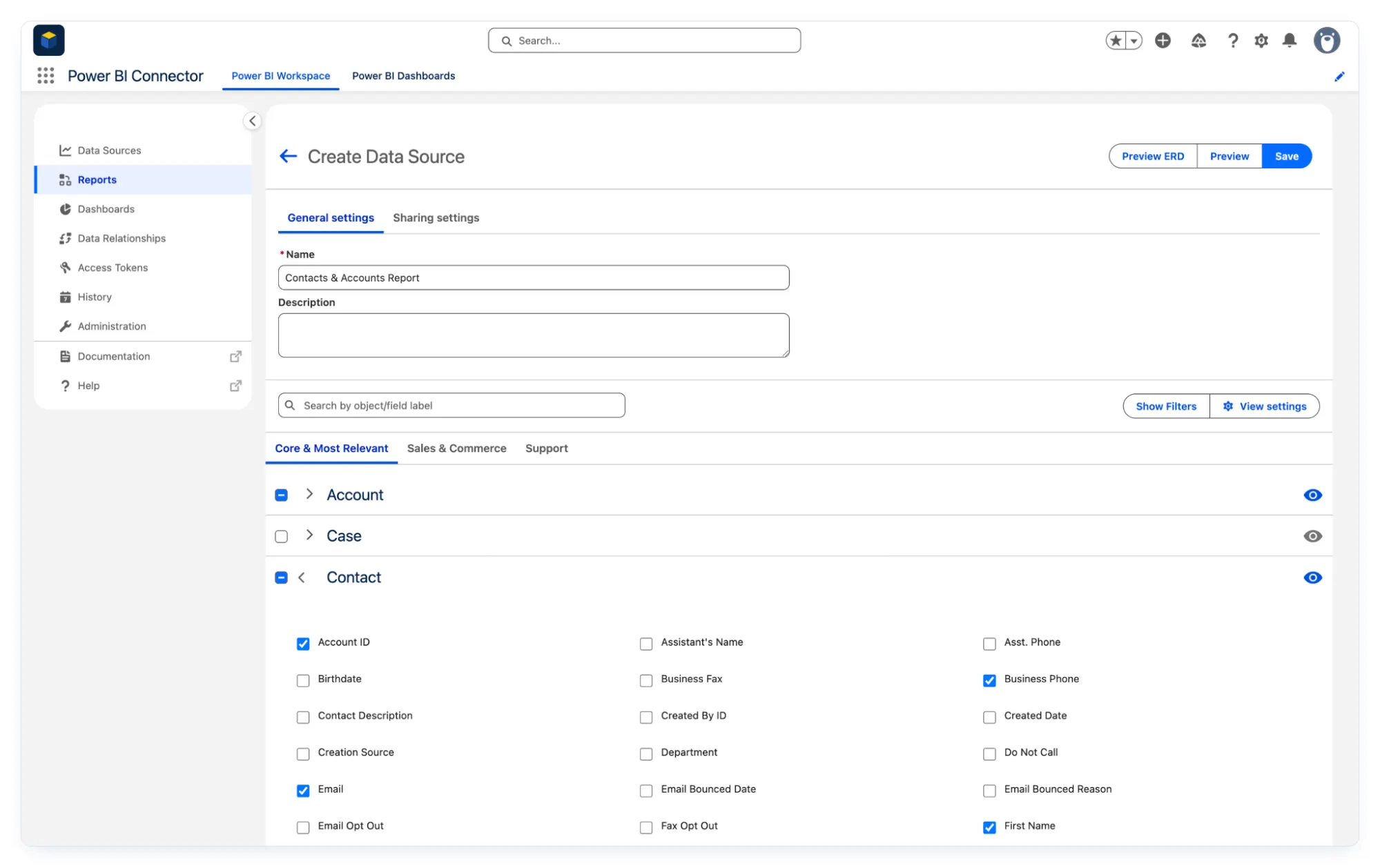
After an administrator assigns the application’s permission sets, users create named data sources from standard or custom objects, installed-package data, historical trending data, or Salesforce reports.
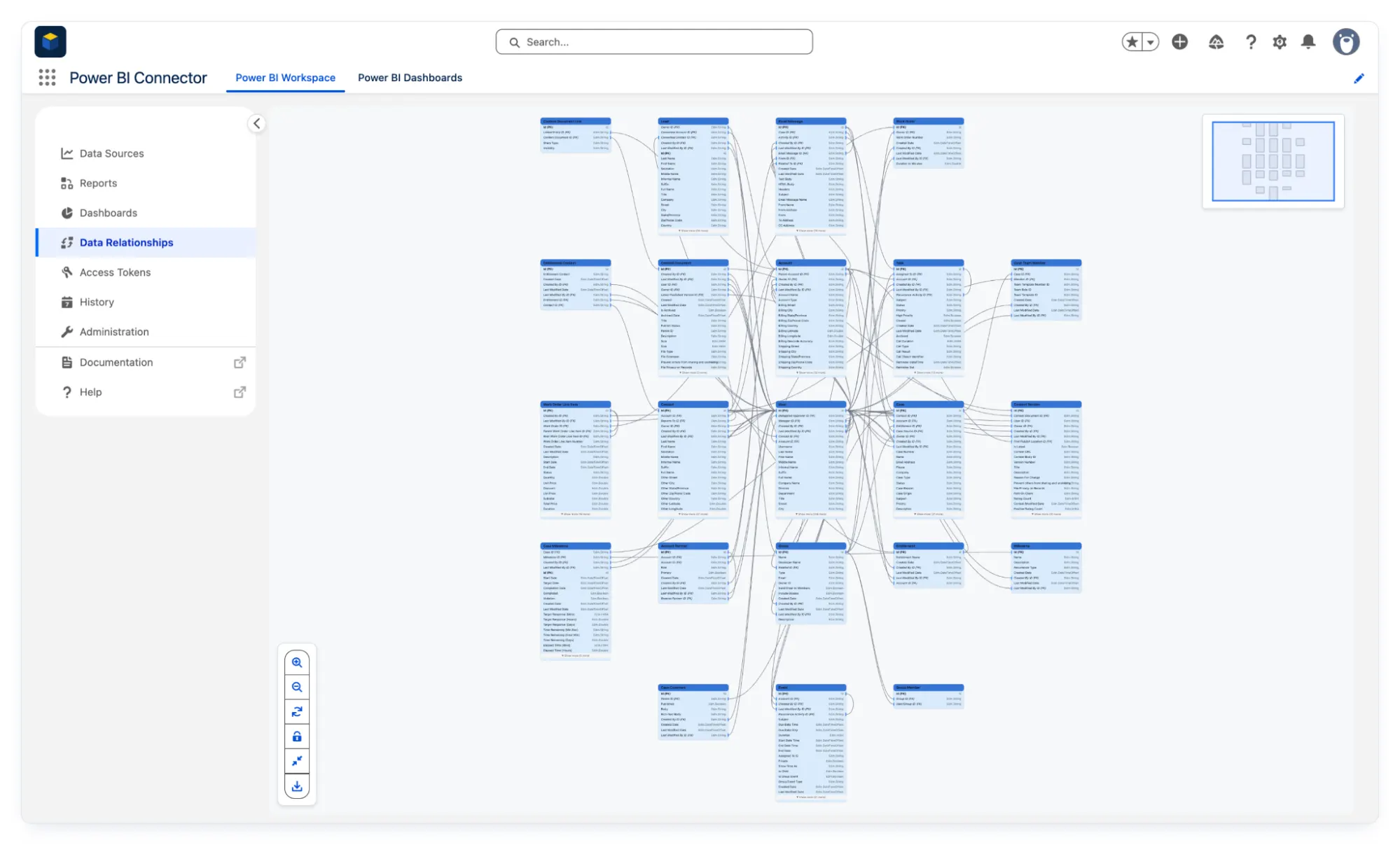
Users select fields, apply visual filters or SOQL, preview the records, and inspect the schema in an interactive ERD.
The saved source generates a Power Query script. The user copies it into Power BI Desktop and authenticates with a personal token created in Salesforce. Power BI then loads the selected tables for modeling and visualization.
See the Power BI Connector for Salesforce documentation for setup instructions.
What the Salesforce-Managed Layer Adds at Scale
- More models and teams. Data sources are independent, reusable configurations with no application limit on their number. Sharing them with Salesforce users or groups lets multiple Power BI models use the same maintained selection and filters.
- Growing data volumes. There is no application-level row limit. Source-side filters reduce the records sent to Power BI, while incremental refresh limits recurring imports to the required date partitions.
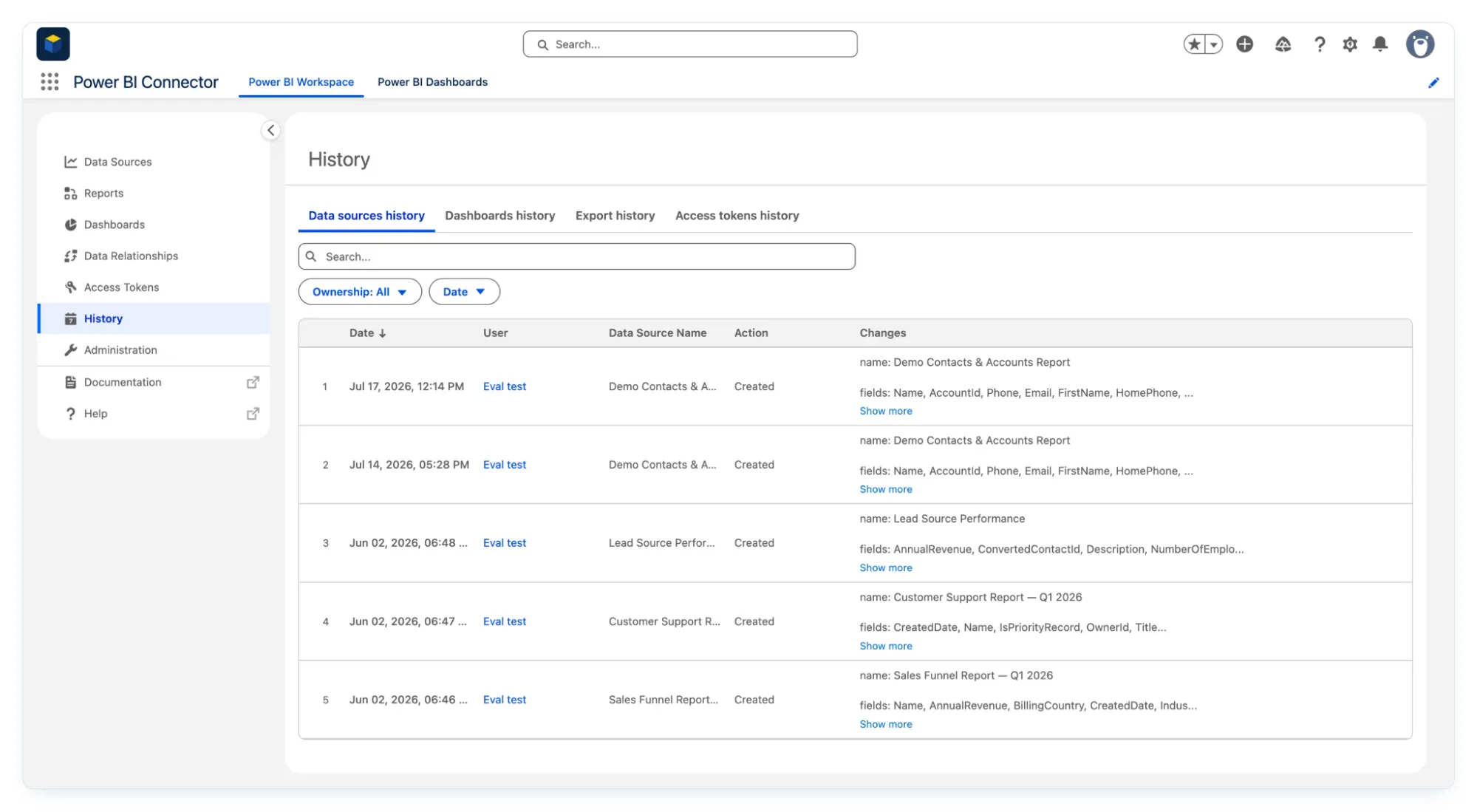
- Security and accountability. Each user generates a personal access token to authenticate exports. Salesforce permissions determine which data that user can export. History section records data-source changes, export runs, and token activity to support troubleshooting and audits.
- Schema documentation. Exportable org-level and data-source ERDs document objects, keys, and relationships.
- Embedded analytics. The connector can embed any published Power BI report in Salesforce dashboards and share it with selected users or groups, giving teams access to analytics without leaving Salesforce.
Summary
A scalable Salesforce Power BI integration must support the required data, refresh frequency, security controls, and operational ownership as reporting demand grows. Microsoft’s built-in Salesforce connectors provide a practical starting point, but organizations with larger datasets, multiple Power BI models, or stronger governance requirements may need additional capabilities.
Power BI Connector for Salesforce by Metrica Software adds Salesforce-managed data sources, source-side filtering, incremental refresh, personal access tokens, activity history, schema documentation, and embedded reporting.